
If your Android device is not connecting to Wi-Fi, mobile data, Bluetooth and other networking services, doing a network reset might be a good idea. This process will erase previously saved network settings and reset the network connections of your device to their default.
Network reset is a good step to take in case the device keeps losing its Wi-Fi connection, the mobile connection is not working or you are unable to connect to Bluetooth devices. It can also help in case of changing SIM cards, changing your service provider or in case of connection issues after upgrading the Android system.
The good thing about doing a network reset is that it does not normally delete your pictures, videos, apps, contacts or other personal information. However, it does wipe the previously saved Wi-Fi networks, Bluetooth pairings and some mobile network settings. So you should be aware of what is going to be deleted before doing a network reset.
What Does a Network Reset Do?
When resetting network settings, your Android device will erase all data related to wireless connections and mobile connections. The specific items that are deleted may depend on the brand of the phone or the version of Android running on the phone.
What is deleted during a network reset?
- Saved Wi-Fi networks and passwords
- Paired Bluetooth devices
- Mobile network settings
- VPN settings
- Some connection preferences
However, personal data is not deleted from the phone as a result of this reset. Thus, applications, video files, photographs, messages, and documents typically remain on the device after the reset process.
In other words, this reset only concerns the connection settings and not the contents of the entire phone.
When Should You Reset Network Settings?
A network reset is worth trying when normal troubleshooting does not solve a connection problem.
For example, you may want to reset the settings if:
- Your Wi-Fi has problems connecting
- You cannot use mobile data
- Issues with Bluetooth connections
- Inability to connect to an established Wi-Fi
- When problems start surfacing after an Android upgrade
- When there are changes that were made either to the network or SIM settings
- Though your mobile shows an established connection, you cannot access the internet.
Start with easy steps such as turning the Wi-Fi or mobile data off and then back on once again. Restarting your mobile phone is also a good step to take.
How to Reset Network Settings on Android
The name of the options in these steps could change depending on the brand of your Android device such as Samsung, Google Pixel, Xiaomi, OnePlus, or Motorola. But usually, there are similarities in the process of network reset as explained below.
Step 1 – Open Settings
The first thing you should do is open the Settings application on your Android device.
You can usually find it on the home screen or in the app drawer. The Settings icon often looks like a small gear.
Next, you will find the relevant option for resetting in the settings menu of your smartphone.
Step 2 – Choose the Reset Option
Depending on your Android device, you will need to go to System or General management in order to find the relevant option on the menu.
On many Android phones, the option can be found under:
- Menu – System – Reset options
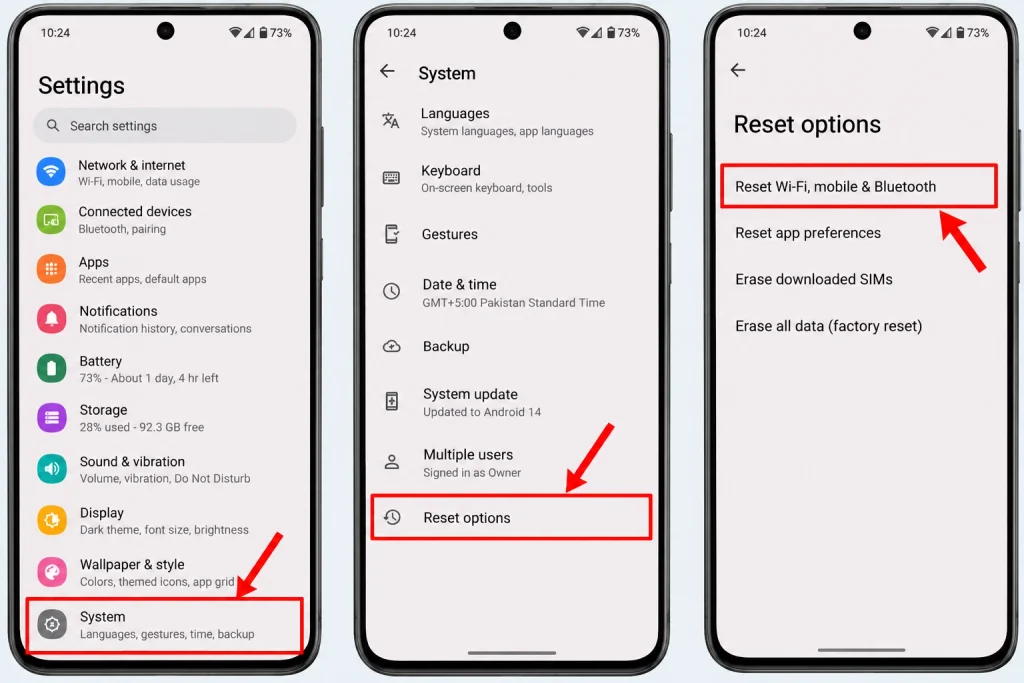
For Samsung devices, you can find:
- Menu – General management – Reset.
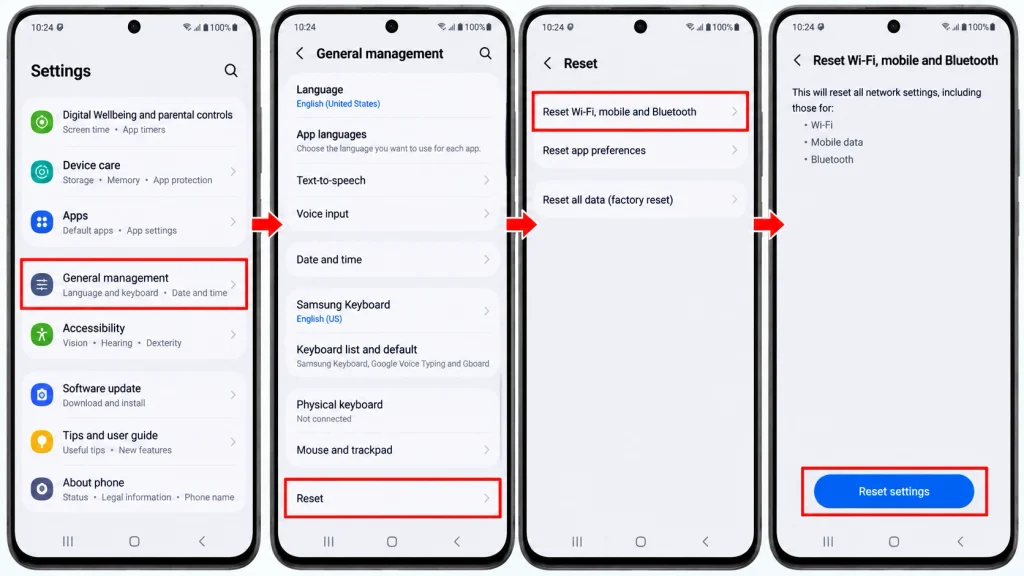
The wording can be different depending on the manufacturer of the device.
If you cannot find the option, simply type in reset network settings or network reset in the search bar.
Step 3: Select Network Reset
After opening the reset menu, look for something like “Reset Wi-Fi, mobile, and Bluetooth” or “Reset network settings.“
Select that option.
Read the information displayed on the screen first. Android will tell you what network information will be deleted.
Consider this a good time to check that you are selecting network reset. Unless you intend to wipe the whole phone, do not choose factory reset.
Step 4: Confirm the Reset
Your phone may ask for confirmation of this action.
On some devices, you may have to provide a PIN, password, or pattern. This is just a security measure.
After entering in your unlock information, click “Reset settings,” “Reset,” or something similar to confirm the action.
Step 5: Wait for the Phone to Finish
Your phone should reboot itself. If it does not do this, just wait a little while, and see if your phone will finish resetting itself.
After the reset is complete, the previous settings will be lost.
Reconnect to Your Wi-Fi Network
This process typically clears all of your Wi-Fi connections after the reset.
As a result, you must reconnect to your Wi-Fi network.
To do this, open:
Settings – Network & internet – Internet
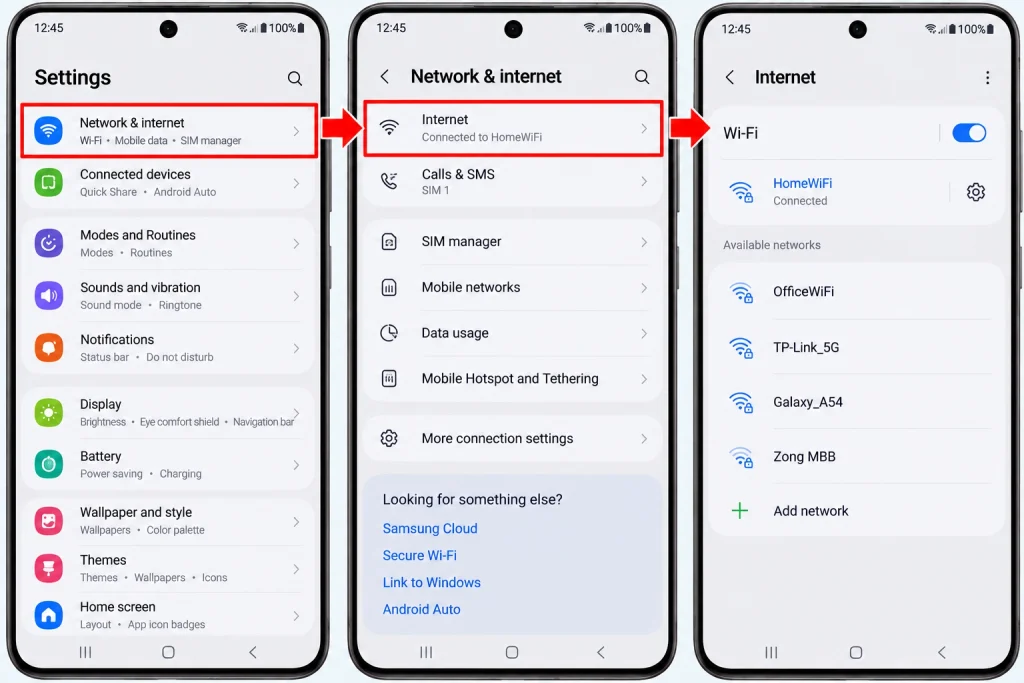
However, the exact menu may differ.
You can then select your Wi-Fi connection from the list provided. After that, simply type in the Wi-Fi password and tap Connect.
Reconnect Bluetooth Devices
During a network reset, Bluetooth pairing connections are removed.
Therefore, all Bluetooth devices including headphones, speakers, smartwatches, vehicles among others will need to be paired again.
Launch Bluetooth setting of your mobile phone and make sure Bluetooth feature is turned ON to search for your Bluetooth device.
Once the search is done, click on the Bluetooth device to pair it with your mobile phone.
Ensure that the Bluetooth device is placed near and turned ON and in pair mode.
Check Your IP Address After Resetting
Resetting the network can modify some specifics of the network connection after your phone reconnects to the network. In case you are trying to troubleshoot a connection, your IP address can be useful in some instances.
Unaware of where to check this information? You can find a guide on how to find my IP address on my device. The IP address you are searching for would typically be available under the details of the Wi-Fi connection you are currently using.
Keep in consideration the fact that you are looking for two different IP addresses; your local IP address is assigned by the router to your device, whereas your public IP address is generally linked with your net connection.
Check Mobile Data After the Reset
You should also check your mobile data connection.
Turn off Wi-Fi and access a webpage via mobile data. If you can browse the internet, you have an active mobile connection.
If you’re still unable to use mobile data, ensure the following are true:
- Mobile data is enabled
- Airplane mode is turned off
- You have an active SIM card
- You have coverage
- You have data remaining on your mobile plan
If the situation persists, contact your mobile operator, as the issue may relate to your account rather than your phone’s network settings.
What If the Network Reset Does Not Work?
Resetting the network can help solve a variety of connection problems, but it isn’t a solution to everything.
If your Wi-Fi connection still does not work, try to reboot your phone and your Wi-Fi router at the same time. Next, try to connect any other device to the network.
If the other devices cannot connect either, the issue is with the router or the internet connection.
However, if other devices work fine but your Android phone refuses to connect, you should continue troubleshooting your phone.
You can also look to see if there are any system updates available for the Android phone. Phone manufacturers periodically provide updates that may fix connection-related bugs.
If you believe that the connection problem lies with Bluetooth pairing, try connecting to another phone. This should confirm whether the problem lies in your Android phone or in the Bluetooth accessory itself.
Does Resetting Network Settings Delete Everything?
No. Resetting network settings is not the same as performing a factory reset.
Generally, resetting network settings does not erase any of your personal information. There will be no deletion of your photos, videos, different applications, contacts, or any personal file.
However, any network-related data will be erased as a result.
In other words, you will have to re-enter your Wi-Fi passwords and Bluetooth pairings, as well as possibly re-configuring some of your mobile networks or VPN settings.
If you use an iPhone, the procedure is different, meaning you may need to follow another set of instructions for resetting network settings on iPhone in case you get these problems while trying to troubleshoot Wi-Fi, mobile data, and/or Bluetooth connections.
Network Reset vs. Factory Reset
Network reset and factory reset are completely different.
Network reset would only generate an effect on settings related to network connections. Its primary purpose is to get rid of Wi-Fi, mobile data, and Bluetooth issues.
Factory resetting a device on the other hand removes all user data and applications and all the phone accounts and settings.
That is why factory resetting is not suitable for users who want to troubleshoot Bluetooth or Wi-Fi issues on their devices.
Network reset is much less disruptive than factory reset.
Final Tips Before Resetting
There are a few things you can do before having to reset network settings.
Try restarting your phone. Make sure your Wi-Fi password is accurate. Disable Airplane Mode and re-enable it to see if that works. If the issue is specific to one Wi-Fi network, restart your router.
If those options fail, a network reset is a good option.
After the reset, you can reconnect to your Wi-Fi and Bluetooth devices and check to see if mobile data is working.
Final Thoughts
Resetting the network settings helps to troubleshoot stubborn connection issues on an Android device. It may vary depending on the brand of your phone and the version of Android. However, it is usually found in the following way: Settings > System > General management or similar resetting option.
Note that a reset may not delete any personal files. However, all the existing network information will be deleted, thus a reconnection to all Wi-Fi networks and pairing with Bluetooth-connected devices has to be done.
When your Android phone is facing connection problems, it is better to first apply some basic troubleshooting steps before resetting the network settings.