
There are many simple methods to check the IP address of your device. It is possible to grab your public IP address using a web browser or find your private IP address using the network settings of your Windows, Mac, Android, and iPhone.
IP addresses are used to identify your device or network when connecting to the internet. Typically, two types of IP addresses exist, public and private. Both will be defined in this article.
In this guide, we will explain how to check either type of your IP address. You will learn how to verify your IP on different devices and how to interpret the output.
What Is an IP Address?
An IP address means a numerical value assigned to a network or a device that connects via Internet or a local system.
It can be considered as the digital address of the device; it is utilized for communication and makes it easier for devices to communicate among themselves.
There are two categories of IP addresses:
Public IP address: This is the type of IP address used for your internet connection when you are using the World Wide Web.
Private IP address: This type is used within your home or any organization or the network.
For instance, a private IP address may appear as 192.168.1.10 while a Public IP address under IPv4 may appear as 203.0.113.25.
In addition, IPv6 has been introduced that comes with longer IP addresses with alphanumeric values e.g. 2001:db8::1.
How to Find My Public IP Address
The simplest method to find your public IP address is via the use of the web browser.
Follow these steps:
- First, open your browser i.e. Chrome, Edge, Firefox, or Safari
- Visit an IP address-checking website
- Look for your IP address on the website
- Copy your IP address if you want to save it for future reference
You may also look up the phrase “what is my IP” on the web. Usually, the public IP address will be displayed in the search results.
Your ISP provides you with your public IP address. Your public IP address can change periodically. For example, you might experience a change in your public IP address when you restart your router.
How to Find My IP Address on Windows
If you use a Windows computer, it is possible for you to find your private IP address through the use of either the Settings or Command Prompt.
Method 1: Use Windows Settings
First, open the Settings of your computer.
Then follow these steps:
- Click on Network & Internet.
- If you are on Wi-Fi, select the Wi-Fi option.
- Choose the Wi-Fi connection you would like to use.
- View your network properties.
- Check for either the IPv4 address or the IPv6 address.
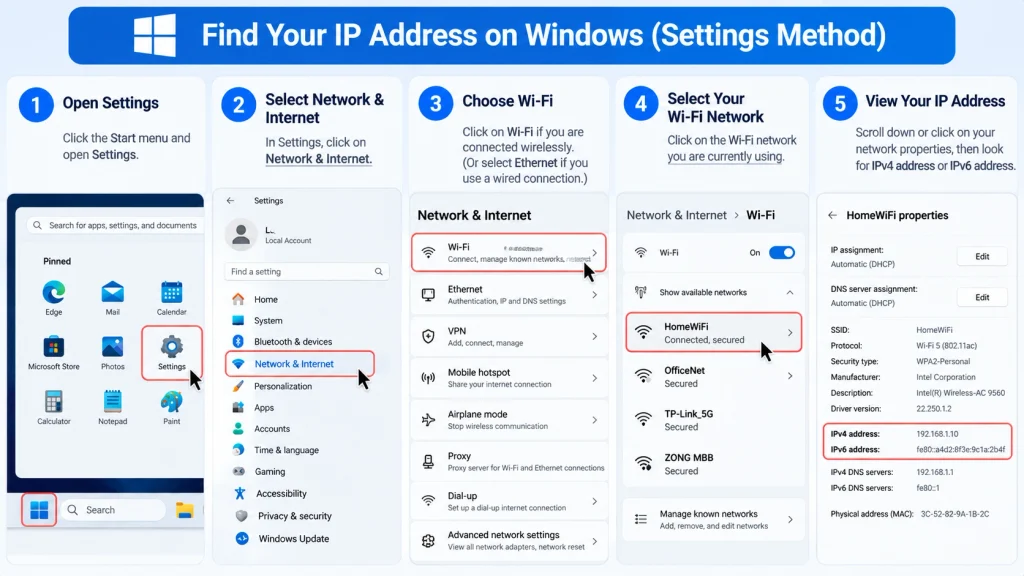
If your computer happens to be connected to the Internet via an Ethernet cable, select the Ethernet option instead.
The information available here can be used to find out what your IP address is. It is the address used for communicating with both your router and other devices found on the same network.
Method 2: Use Command Prompt
You can also use Command Prompt.
- Press Windows + R.
- Type cmd.
- Press Enter.
- Type ipconfig.
- Press Enter.
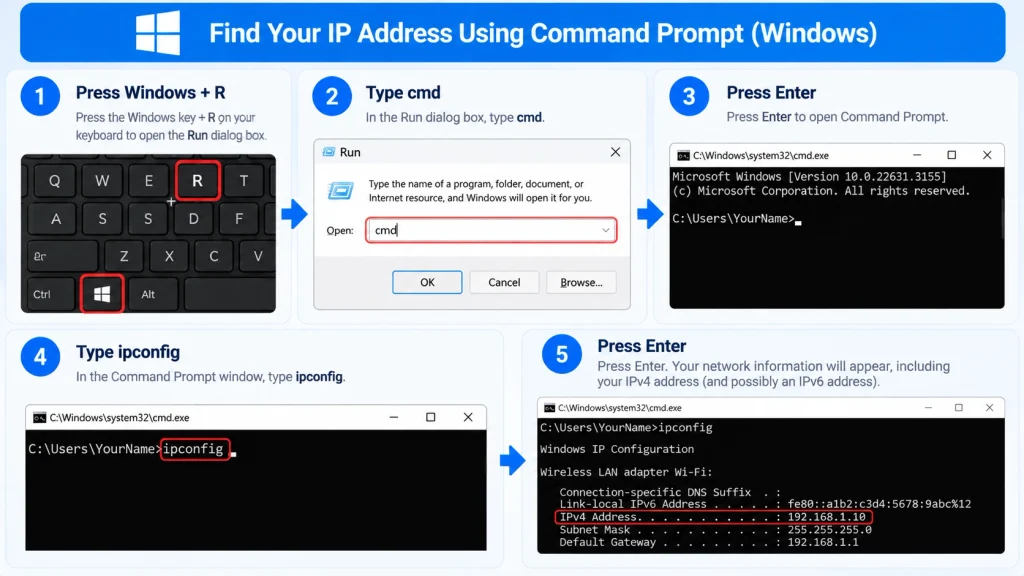
You will receive many details regarding your network.
Look for the IPv4 Address under the network connection you are currently using. This is your private IPv4 address.
For example:
IPv4 Address: 192.168.1.10
You may also see a Default Gateway which is usually the private IP address of the router.
How to Find My IP Address on Mac
Just:
- Go to Apple menu
- Choose System Settings
- Select Network
- Click on your active connection
- Choose Details or connection info option
- Look for IP address.
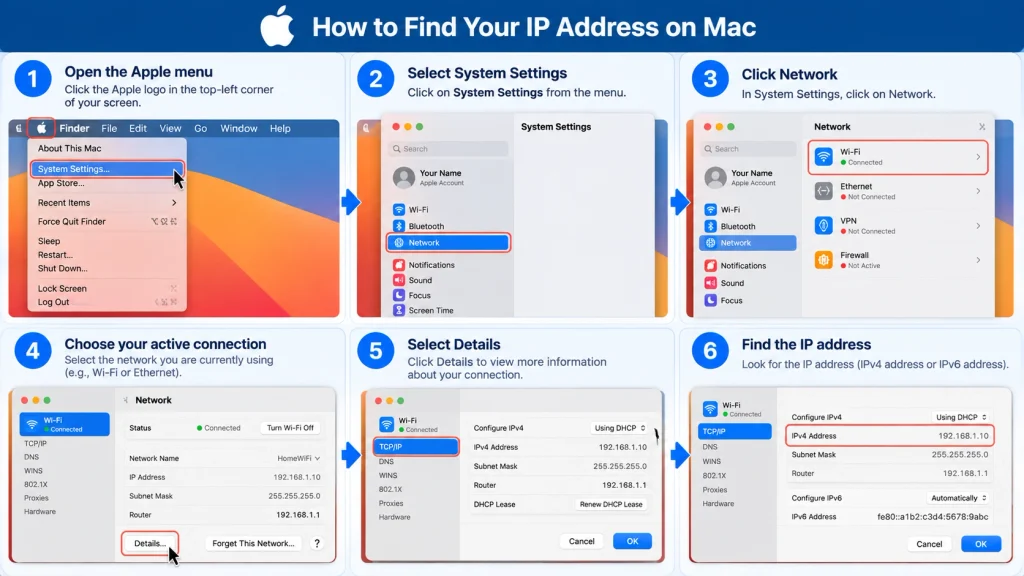
If you are connected via Wi-Fi select Wi-Fi, and if you are using a wired network then select Ethernet.
You may see IPv4 and IPv6 information, so do not worry if you see many addresses.
How to Find My IP Address on Android
You can find your private IP address on your Android mobile phone by checking the network settings, however the steps can differ depending on the model.
Here is a sample method:
- Go to Settings
- Click on Wi-Fi or Network and internet
- Choose the current Wi-Fi network
- Go to the network information
- Your IP address will show in this section
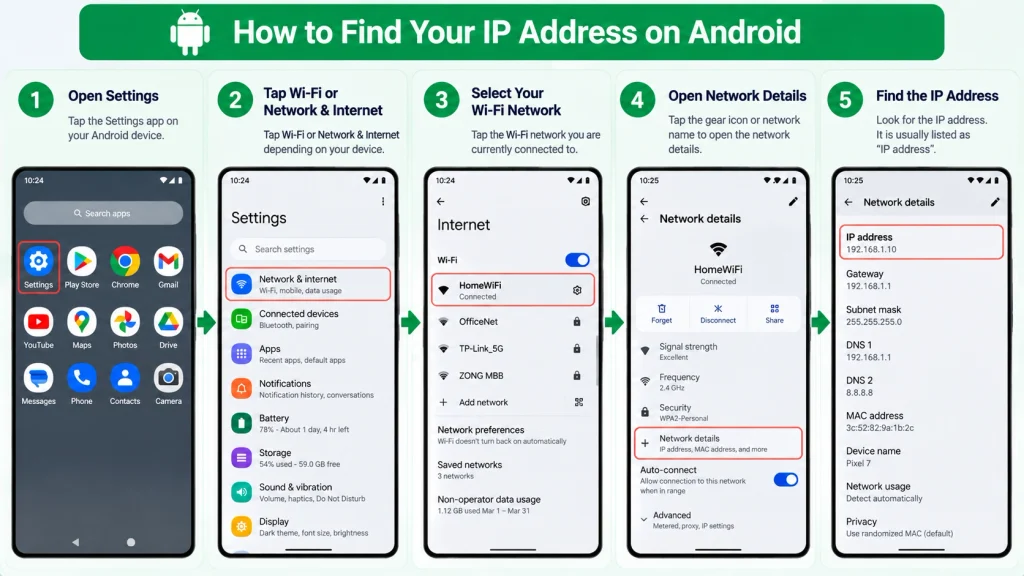
Some Android phones place this information under an Advanced section.
To find your public IP address, simply open a browser and search “what is my IP address.”
How to Find My IP Address on iPhone
You are able to access the private IP address of your iPhone by checking the settings for its Wi-Fi connection.
Follow these steps:
- Open Settings in the iPhone.
- Select Wi-Fi option.
- Identify the name of the network you are using.
- Select information sign next to it.
- Check section of IP Address.
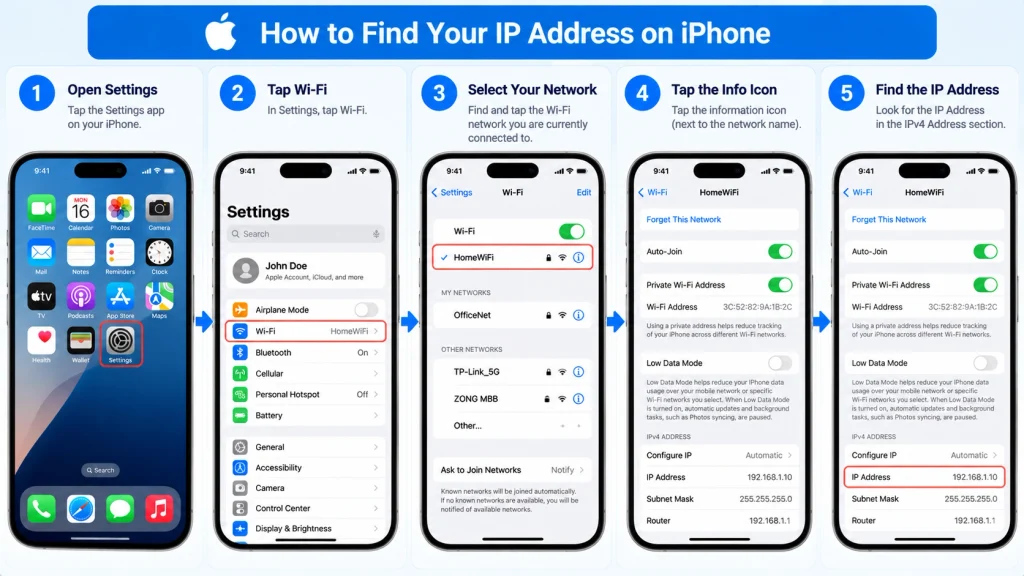
You can also get details for IPv4 and IPv6.
This usually indicates the private details for your network. If you wish to find out your public address, just use your browser to search “what is my IP”.
How to Check Your IP Address Without Installing an App
There’s no need for downloading any specialized tool to find IP address.
You can often check your address from any web browser in a few seconds.
In whatever search engine you choose type the words:
What is my IP address?
The output should display your public IP address. You could also use an already trusted web-based service to check your IP address.
This works with the following devices:
- Windows personal computers
- Macs
- Android phones
- iOS phones
- Tablets
- Any other internet enabled devices with the browser.
Therefore you no longer need to download any unknown app just to check your public IP address.
What Is the Difference Between Public and Private IP Addresses?
It is important to note that public and private IP addresses are not the same as these addresses help us determine different things.
A public IP address identifies a connection to the internet among all connections. In most cases, your internet service provider will assign you an ISP with a public IP address.
On the other hand, a private IP address identifies a device on the private network. However, a private IP address can be assigned by a router to the devices connected to a local area network.
For instance, your laptop may have a private address such as 192.168.1.20 but your router may have a separate public IP address for connecting to the internet.
So when you ask a website for your IP address, most likely you mean your public IP address, whereas if you are troubleshooting a network problem, then you will need your public IP address.
Why Would I Need to Find My IP Address?
There are various reasons to check your IP address. You may need it when you are trying to resolve a problem with your internet connection. You might also need it when you are going to do some specific things over the network.
For example, you might need your private IP address in order to configure your router, print, or to add a device to your home network.
You may feel the necessity to know your public IP address when you are troubleshooting a website or an online service. It is important to note, however, that knowing your IP address does not mean that you have all the information about your device.
Can My IP Address Change?
Yes. Your public IP address can change.
Most residential internet accounts are dynamic. This means that the computer does not have an assigned location on the computer’s internet via a static or fixed Internet Protocol address.
The private IP address of a computer can also change. For instance, the router may allocate a different address to one computer versus another, within a same set of devices.
Nonetheless, certain residential broadband accounts use a static IP address. NOTE: static IP address cannot be changed once assigned.
Hence, an address can be seen as changing in one moment and retaining a previous state a moment later; this is no proof of trouble of any sort.
Is It Safe to Share My IP Address?
Sharing your IP address is not as dangerous as sharing the password to your computer or network. However, it still has the potential to give people too much information about you.
Your public IP address will only give general information on your internet connection and approximate location. Your public IP address does not give away your street address.
When sharing IP address information or other network information, you should be careful. It is never okay to share passwords, router log-in information, Wi-Fi passwords, or other private security information.
Before giving your IP address to a site for troubleshooting purposes, make sure you understand the reasoning behind the request.
Top 3 Websites for Checking Your IP Address Online
If you want to find out your IP address using an online method without having to change any settings on your device, you can do so without incurring any costs. In most instances, the IP checker website automatically identifies your public IP address immediately upon loading the site.
Below are the three best sites for checking your IP address online.
1. WhatIsMyIP.com
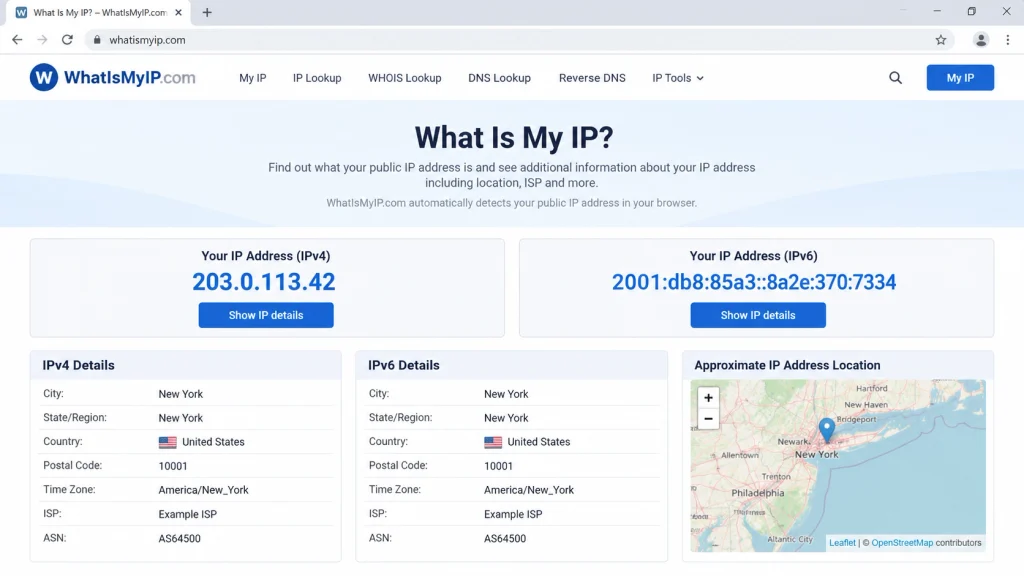
WhatIsMyIP.com is an easy-to-use website that allows you to find out your current public IP address. After you open the website, it provides you with information about your public IPv4 address, and when available, it will show you your public IPv6 address as well as other information such as your approximate position, ISP, ASN, and time zone.
The website gives you a number of other network tools. For instance, you can use the IP Address Lookup tool to evaluate information about another public IP address. Some of the other tools you can find on the site include WHOIS lookup, hostname lookup, IP blacklist checking, and reverse DNS lookup.
How to use WhatIsMyIP.com:
- Open your web browser.
- Go to WhatIsMyIP.com.
- Check your public IP address displayed on the page.
Locate the IPv4 or IPv6 address from the section and you may copy this address if needed for troubleshooting.
It is noteworthy that the site does not require your private IP address in order to show you your public IP. The websites see the public IP that your internet connection is using while covering the private IP address which is only used in the internal network.
It should also be noted that the location indicated by the IP checker is always an estimation only. It can indicate the large city or area referring to this IP address but it is not meant to be a precise home address of yours.
2. IPinfo
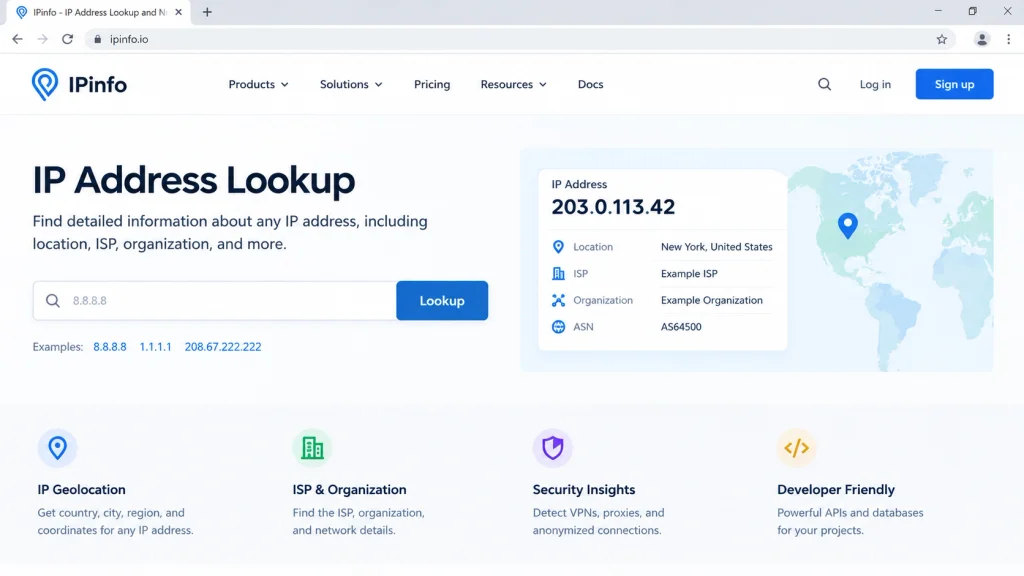
IPinfo is another great option to find out the IP address’s information. It is very useful for those who want to get more information than just the IP code.
With IPinfo, you will be able to get various facts about the IP code. This includes the operator of the IP address, its location, and whether the IP is an anonymous connection. The service may also give you other information about each network, such as VPN, residential proxies, and Tor nodes.
Therefore, it can be said that IPinfo can be beneficial to both regular users and people dealing with networks and websites.
To check the IP address with the help of IPinfo:
- Open your browser.
- Go to the IPinfo website.
- Go to the IP lookup page or to use IP information tool.
- Take a look at the IP address that appears for your connection.
- Review the additional network details if you want.
For instance, you can see the operator, country, city, ASN of the connection, and type of connection in the details shown. However, using IP information to check a person’s actual physical location is not accurate.
IPinfo offers developers various tools and data services. The platform has API downloads, databases, and other related tools to the IP.
So, this option is never going to let you down, whether you want to check your own IP or you are in need of IP information for technical projects.
3. WhatsMyIP.io
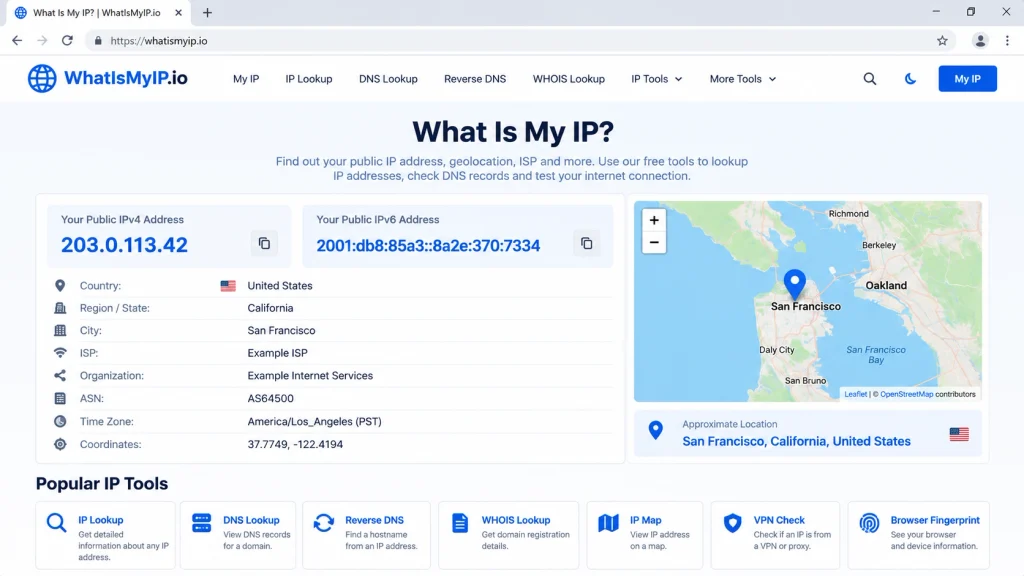
WhatsMyIP.io is another online option to find out your public IP address. This service allows you to see your public IPv4 and IPv6 addresses, as well as some network and location data.
In addition, the site has many other network tools, which include DNS lookup, reverse DNS, WHOIS lookup, email header examination, user-agent data, and subnet analysis.
If you want to check your IP address simply follow these steps:
- Open a web browser on your computer or mobile device
- Go to WhatsMyIP.io
- See your public IP address on your screen
- Look through the network data provided
You can also take advantage of this site when you want to analyze a certain public IP address instead of checking your own connection.
Quick Way to Find Your IP Address
If you only need your public IP address, the process is very short.
Just launch your browser: Type “what is my IP” on Google search, Your IP is now available on the screen.
If you wish to find your private IP address, check your device’s system settings.
On Windows computers, using Command Prompt via the ipconfig command will be a quick alternative.
Android and iOS users can easily go to their Wi-Fi settings and check their network’s details.
Final Thoughts
Finding your IP address is usually an easy process. The most important thing to remember is knowing the difference between a public IP address and a private IP address.
If you want to find your public IP address that is visible to the websites, it can easily be done using a web browser, whereas if you are troubleshooting your home or corporate internal network, you will need to find your private IP address on your device settings.
Windows users can use command prompt and type ipconfig for this, while Mac users can check their private IP address by going in to their network settings from system preferences menu. Android or iPhone users can check their private IP addresses through their WiFi settings.
Once you know whether you need public IP address or private IP address, it takes only a few moments to find either of these.