

To delete cookies from your browser settings, just follow the steps mentioned below. Cookies are small files that many websites save to your browser. Cookies can remember your login details, site settings, shopping carts, etc. However, some older or unwanted cookies can sometimes create problems while browsing websites. In addition, deleting them may also log you out from websites.
The necessary steps are different for each browser. Here is how you can delete cookies from Google Chrome, Microsoft Edge, Mozilla Firefox, and Apple Safari. Also, learn how to delete cookies from only one website instead of deleting all the cookies.
What Are Browser Cookies?
A cookie is a term used to describe a small amount of data that will be stored on your hard drive for a specific period of time and will not be deleted by the browser. It includes Some of the important data that are saved by websites on the user computers.
For instance, it may save:
- Your login information
- Your language preferences
- Your shopping cart data
- Your preferences for that web page
- Some of the Browsing information
Cookies are very useful since they are helpful in remembering some data about you. However, they can become stale sometimes. In turn, this can cause problems when using that website.
Cookie deletion may help your browser keep fresh copy of the data of some websites. However, it will not delete your browser’s history unless you do it separately.
How to Delete Cookies in Google Chrome
Google Chrome enables users to delete all cookies or only cookies per website visit.
To delete entire cookies from Google Chrome browser:
- Open Google Chrome on a computer.
- Click on the three dots in the right-top corner.
- Select Settings.
- Tap Privacy and Security.
- Choose Clear Browsing Data.
- Select the appropriate time range marked as All time to delete all cookies saved for the selected data type.
- Click on Cookies and Other Site Data.
- Any other data related to your browsing can also be deleted.
- Clicking on Clear Data would remove the cookies selected.
- After this, Google Chrome will clear off the cookies already selected.
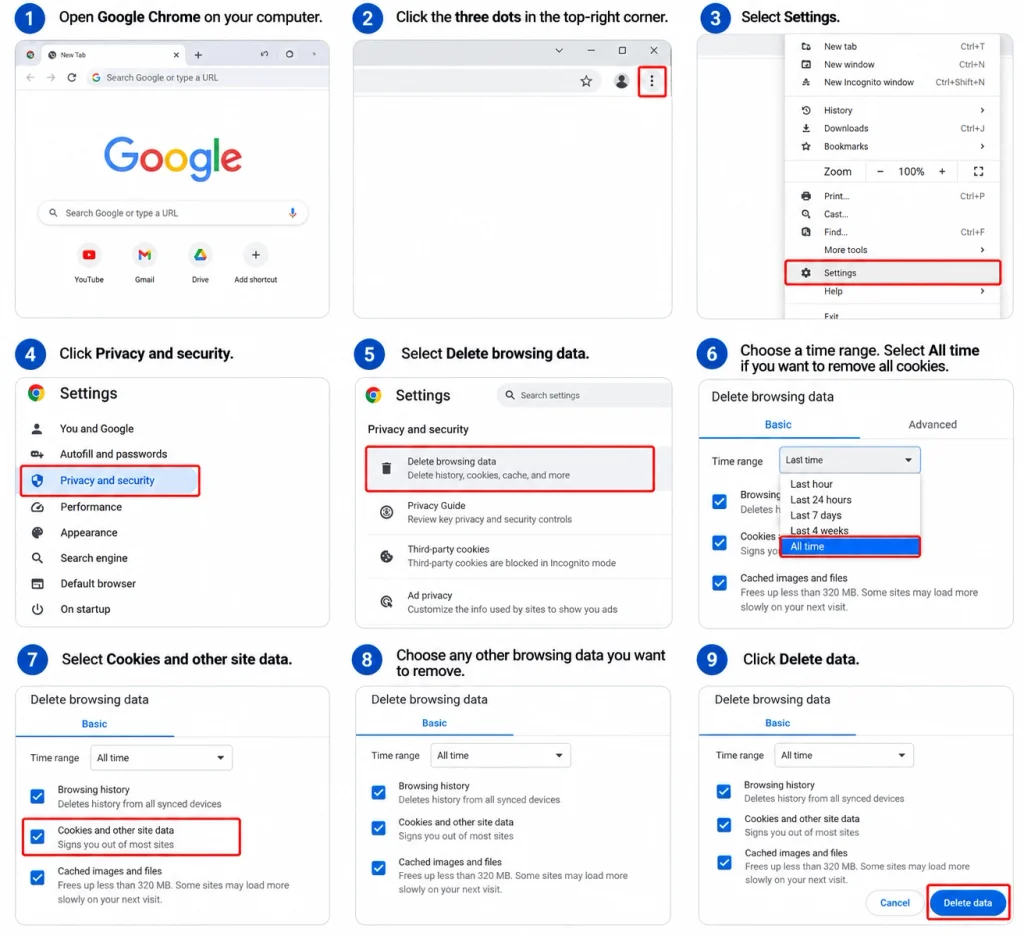
Make sure that you would be required to log into various websites again and also some websites may lose the existing settings.
Delete cookies from one website in Chrome
At times we don’t need to wipe out all cookies but rather focus on one specific site cookie.
To do that, please go to the settings of Google Chrome and under the section of cookie or site data search for the specific site from where you want to remove and delete the corresponding data.
This option is helpful when one site is malfunctioning and the rest of the sites are functioning properly
How to Delete Cookies in Microsoft Edge
Microsoft Edge has a similar process.
Remove all cookies in Edge
- Open Microsoft Edge.
- Click on the three dots in the upper-right corner.
- Choose the Settings option.
- Go to Privacy, search, and services.
- Look for the option of clearing your browsing data.
- Select the option Choose what to clear.
- Select your time range.
- Mark Cookies and other site data.
- Click Clear now.
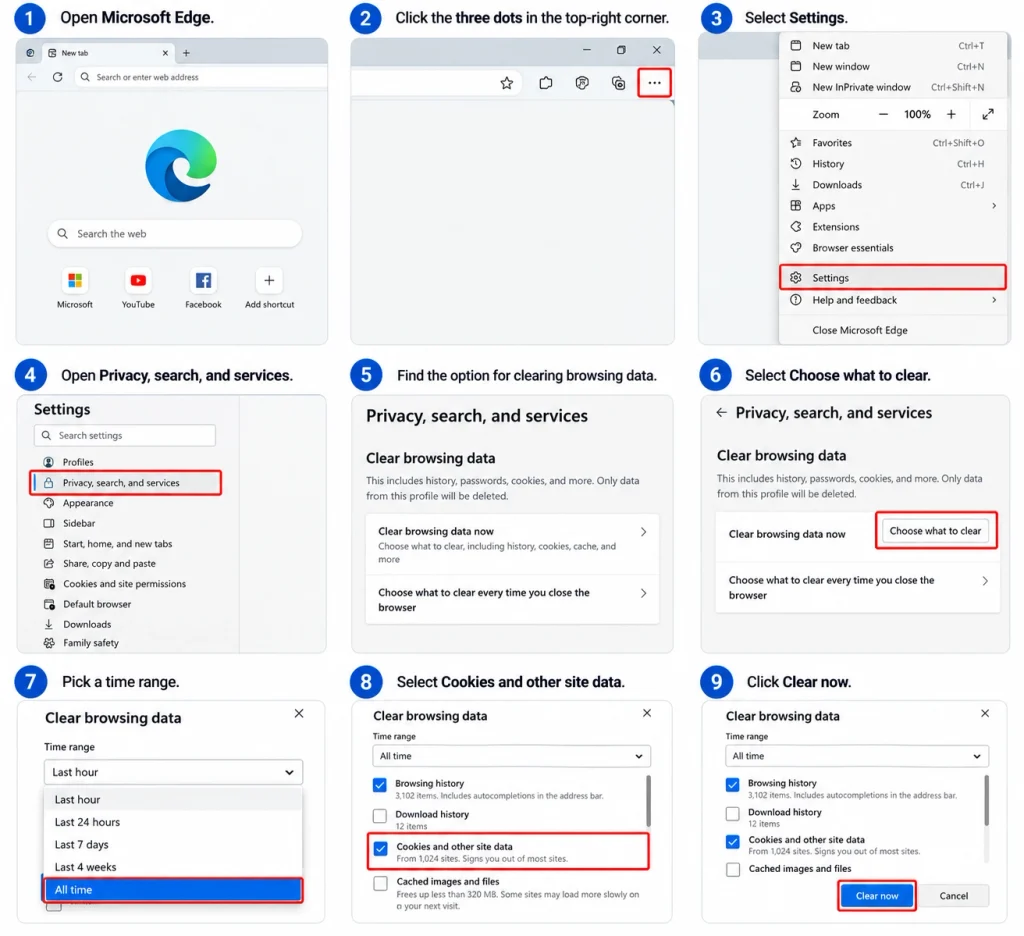
Edge will begin deleting the cookies corresponding to your selection.
If you only want to delete your cookies, ensure that you do not mark other types of data if you do not want to delete them.
Remove cookies for a specific website
Edge also enables the management of site-specific data. This feature allows you to delete data pertaining to an individual website as opposed to all stored data.
Using this method will allow you to troubleshoot only one website. For example, if there is a website that is stuck in a previous session or is not loading correctly, removing the associated cookies may resolve the issue.
How to Delete Cookies in Mozilla Firefox
Mozilla Firefox allows you to delete cookies from its archives.
Delete all cookies in Firefox
To delete all cookies in Firefox, do the following:
- Open Firefox.
- Click the menu icon found in the upper-right corner.
- Select the Settings button.
- Click on the Privacy & Security option.
- Find the Cookies and Site Data option.
- Click on Clear Site Data.
- Select the data you wish to delete.
- Confirm your choice.
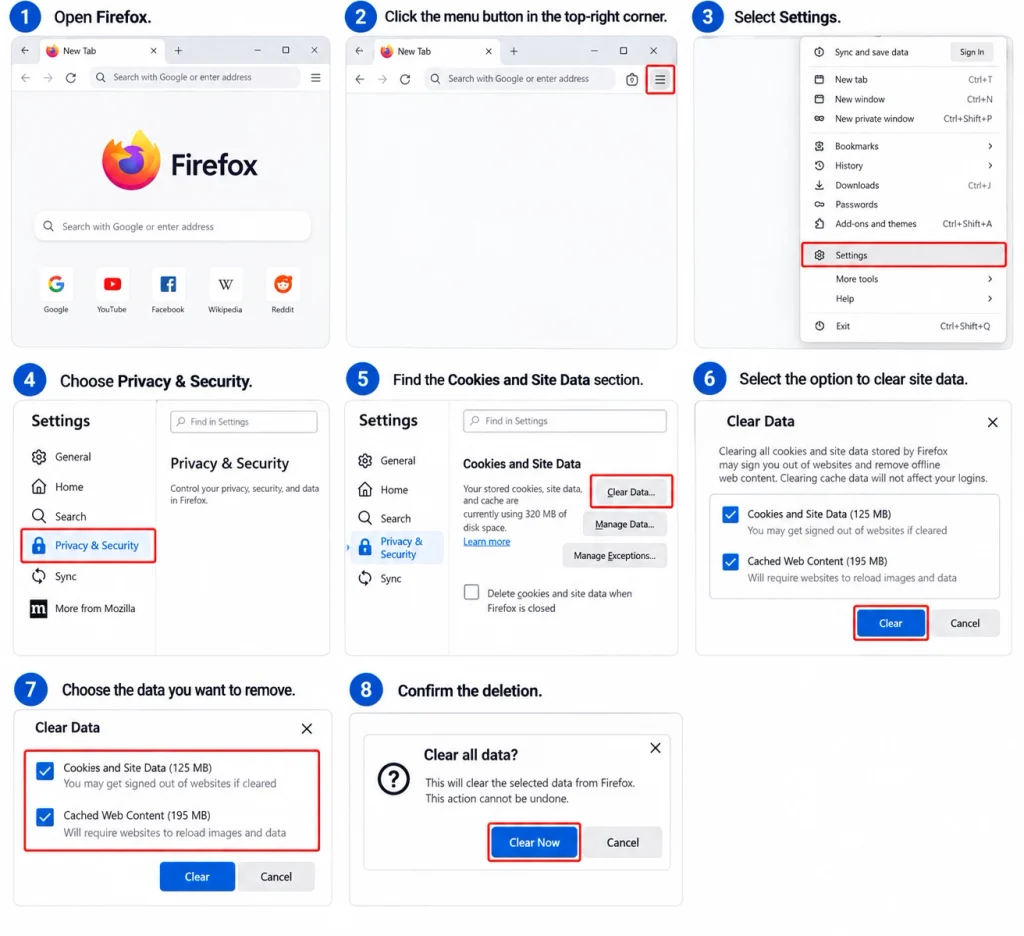
You should note that Firefox may give you the option to choose a specific time frame in which certain data can be removed.
Delete cookies from one website in Firefox
You can also control site-specific data on individual sites. Open the settings in Firefox and navigate to the Privacy and Security section. Under the cookies and site data area, you will find options to view or clear the data associated with visits to particular sites.
By doing this you can retain cookies for other sites and simply clear out the cookies (data) associated with the problem site.
How to Delete Cookies in Safari on Mac
Unlike Chrome, Edge, and Firefox, Safari has a different setup.
Remove cookies from Safari
To delete cookies from Safari:
- Launch Safari on your Mac
- Click on Safari from the menu bar
- Access Preferences
- Go to Privacy
- Choose the Manage Website Data option
- You can either look for an individual website by typing the name into the search box
- Select individual websites or select to clear data of all websites
- Click Done
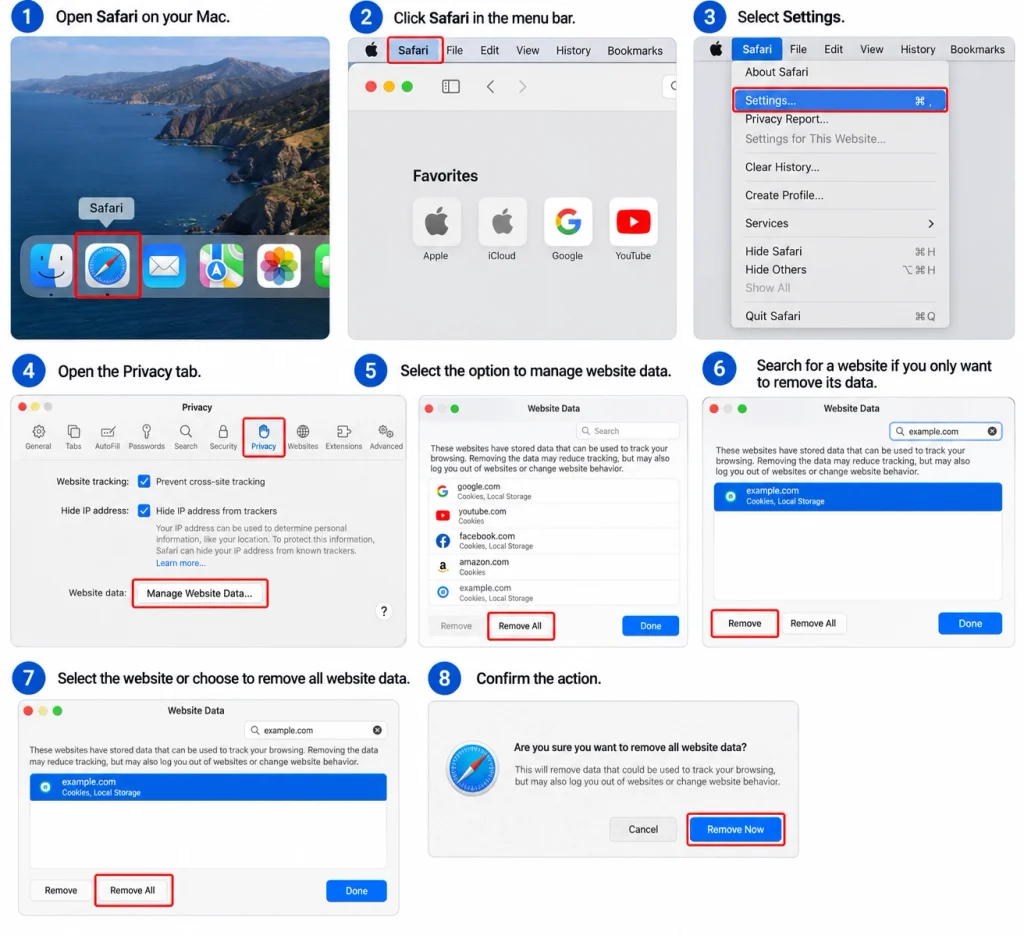
Be aware that when you delete cookies some websites may require you to sign in again.
Safari can also remove other website storage in addition to cookies, so check what you are deleting before doing it.
How to Delete Cookies on an iPhone or iPad
If you use Safari on the iPhone/iPad, you can remove website data from the setting of your device.
Go to Settings, open the Apps tab and choose Safari—then look for an option to delete history and website data.
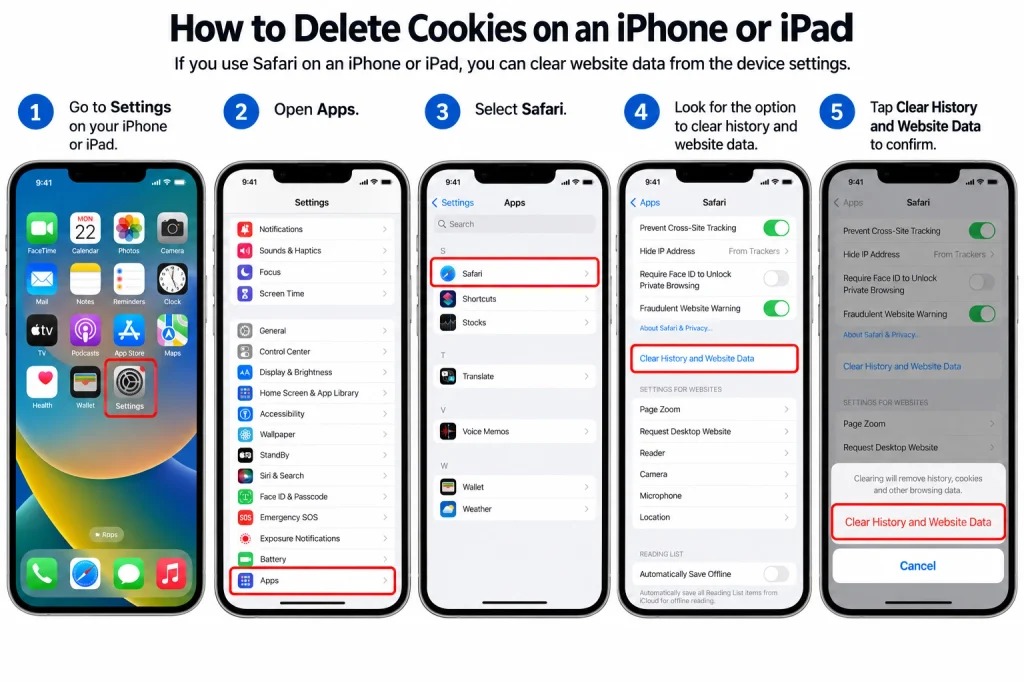
Depending on your iOS/iPadOS version, the term and location used may vary slightly.
If, however, you wish to manage data for individual sites instead of clearing all site data, Safari includes website data management features in settings as well.
What Happens When You Delete Cookies?
When you delete cookies, you may notice an impact on the behavior of websites.
This may include the fact that:
- You will need to log back in to certain websites.
- Your preferences made on websites will no longer be saved.
- Your shopping cart on certain websites will be empty.
- Some websites may ask for permission to use cookies more than once.
- Problems found while accessing a website might be resolved.
It is worth noting, however, that deleting cookies does not mean that any other files stored in your computer system will also be deleted. The main thing that gets deleted when you erase cookies is website data that was stored by your browser.
Should You Delete All Cookies?
Not every cookie in every session should be removed.
If a single site is not working correctly, generally it is possible to solve this issue by deleting that site’s cookies. That way you will not lose your session on any other sites.
On the other hand there are times when clearing all cookies may be reasonable if one would like to reset the browser’s stored information about websites.
However, before doing so, think if you need any saved logins, preferences, or all of the items in the shopping cart.
When Should You Delete Cookies?
There are several situations where deleting cookies can help.
Common reasons include:
- A particular website continues to show an outdated account.
- A particular website fails to load properly.
- A specific login process is getting stuck and it seems to be stuck.
- A specific website is having a problem regarding its configuration settings.
- Desire to erase any saved information from a shared computer.
- Want to delete earlier visited websites.
However, cookie removal is not always the sole solution for the problems faced. If a particular website still doesn’t work after the removal of cookies, try clearing the cache and updating the browser instead or disabling problematic browser extensions or even confirming with the website itself.
How to Delete Cookies Without Losing Everything Else
If you would like to keep your browsing history intact, do not delete all the information at one time.
Instead, check for a way to manage cookies through your site data or cookie settings. Then find the site in question and delete the cookies from that site.
Doing this provides an opportunity for you to gain more control over the information you do not want to delete. You can delete cookies on just one shopping site while continuing to have a session on another site.
This is also useful for troubleshooting purposes. If a website starts working again once you delete its cookies, you have an indication about the cause of the problem.
Does Deleting Cookies Delete Passwords?
When you delete cookies, you don’t automatically delete the passwords which are stored by your web browser in its password manager.
One should know that web browsers store different kinds of information separately. Therefore, when opening the delete browsing data page, you should take care to check the right options.
All saved passwords and stored information can be cleared on demand.
You should be careful when choosing options to delete the required information.
Final Thoughts
Clearing cookies from your browser is one way of deleting the saved page data from the browser. Whether you want to clear all cookies or just the cookies from the concerned website is your option.
Chrome, Edge, Firefox, and Safari have features to manage cookies. However, the names of the menu items may vary after browser updates but the steps of completion remain more or less the same.
In case you want to fix a problem related to a particular website, it is advisable to remove the cookies only from that website rather than deleting all cookies so that you lose all your other browsing information.
It is preferable to always ensure what data you have selected before doing the final deletion. Thus you can delete unnecessary cookies without losing the essential information.