
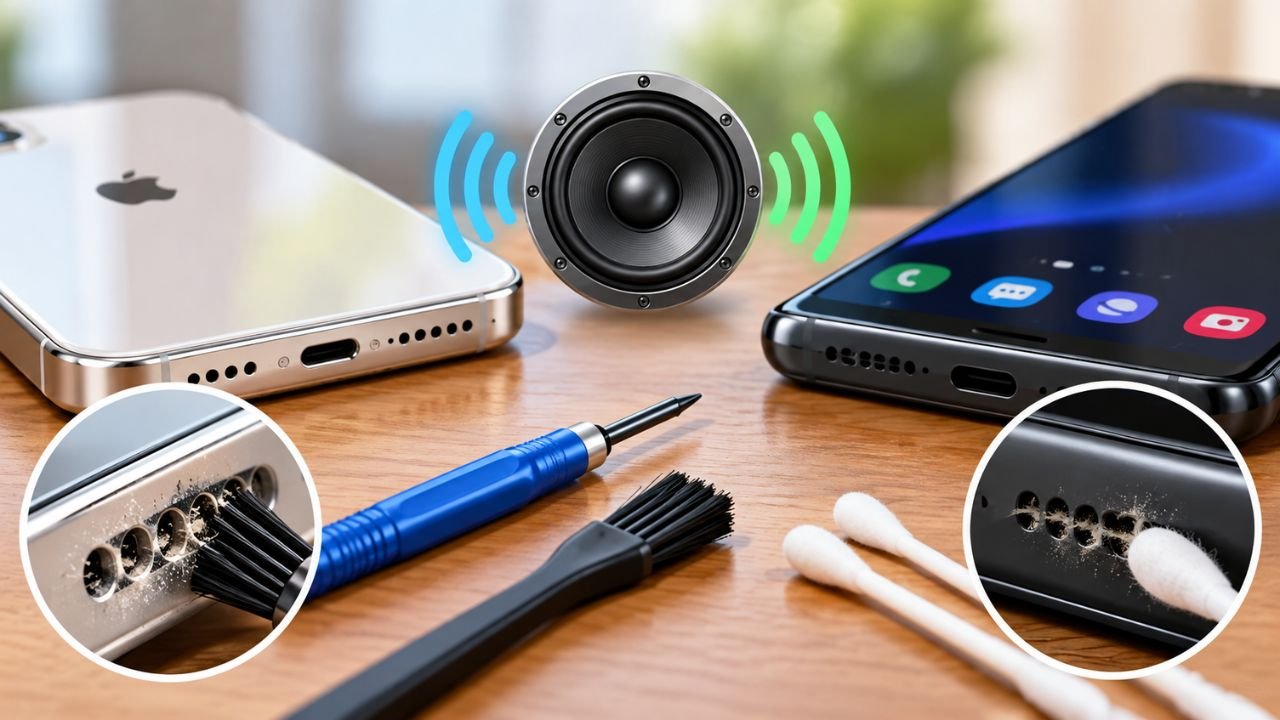
A phone speaker can stop working for several reasons. The sound may be very low, unclear, or completely missing. Sometimes it can be due to dust, blockage of the speaker holes, activation of Bluetooth, or simple software problems or water penetration.
The good news is that you can resolve many of the speaker issues on your own. You can start with the easy steps outlined above before exploring more complicated solutions. The same basic checks apply to both iPhone and Android phones, but the settings may differ.
Step 1: Check the Volume
heck that your device volume is turned up.
- Use the volume up button a few times.
- Play music or watch a video to verify the sound levels.
- Confirm that your device is not muted.
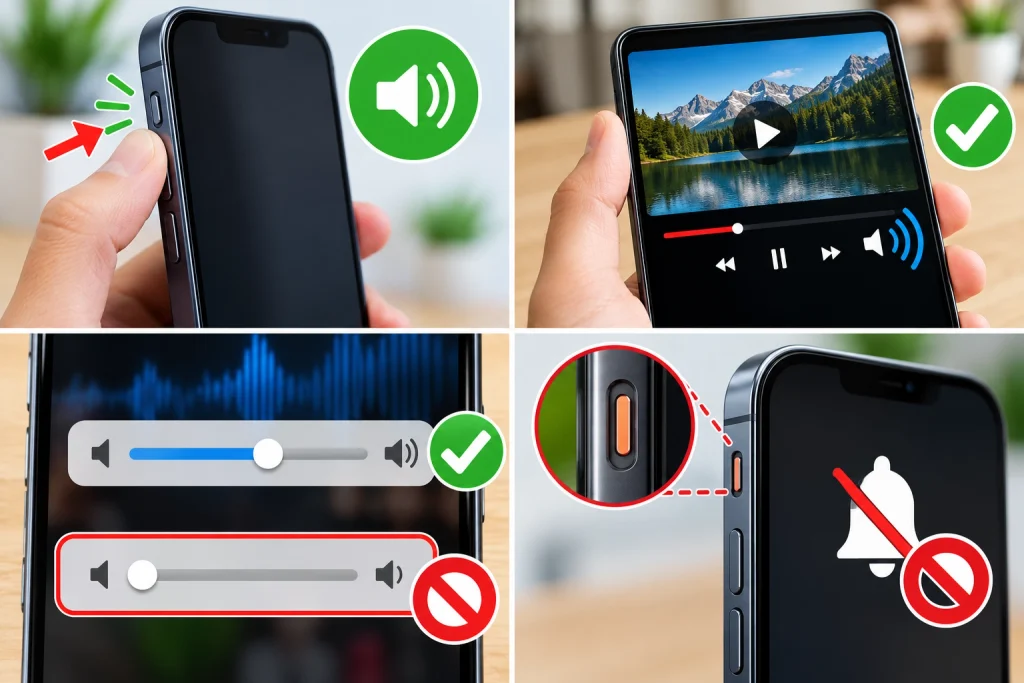
If you are using an iPhone, you can adjust your volume level via either the volume buttons or Control Center.
Those with androids can also adjust their volume levels via the buttons on their devices or they can go into the settings and change their volume levels there for the different types of sounds (such as notification, calls, media, etc.).
Increasing the volume should be helpful if it is all the way down to begin with.
Step 2: Turn Off Bluetooth
Your phone may be outputting sound to an external device. For example, it may be connected to wireless headphones, a vehicle system, or any other Bluetooth-enabled speaker.
To check this, temporarily disable Bluetooth.
For iPhones:
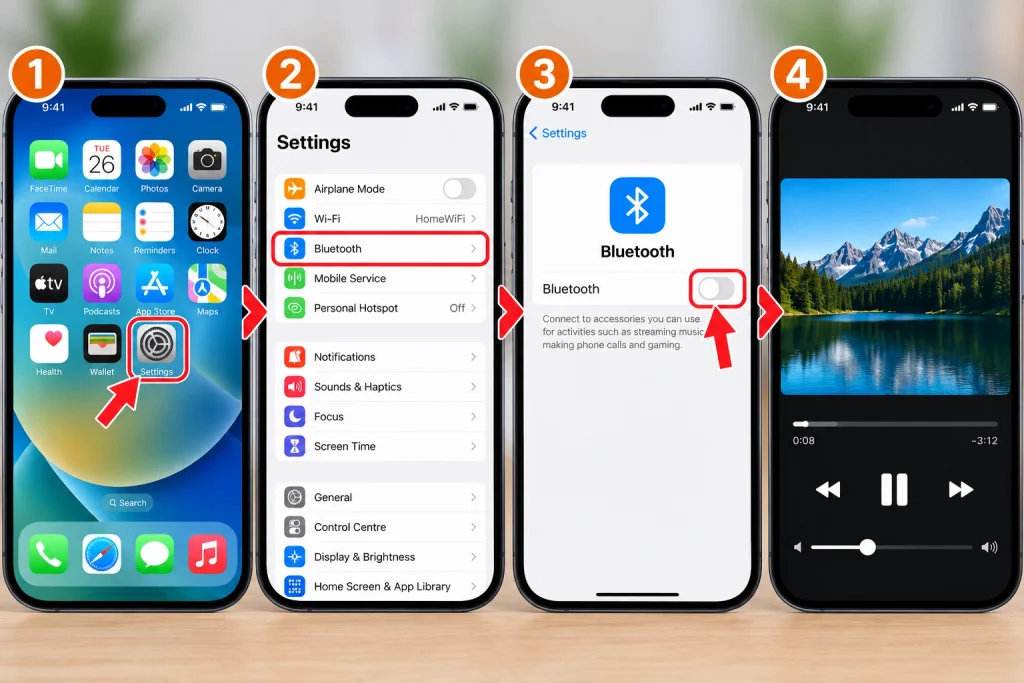
- Go to Settings.
- Select Bluetooth.
- Disable Bluetooth.
- Play the video or audio again.
For Android phones:
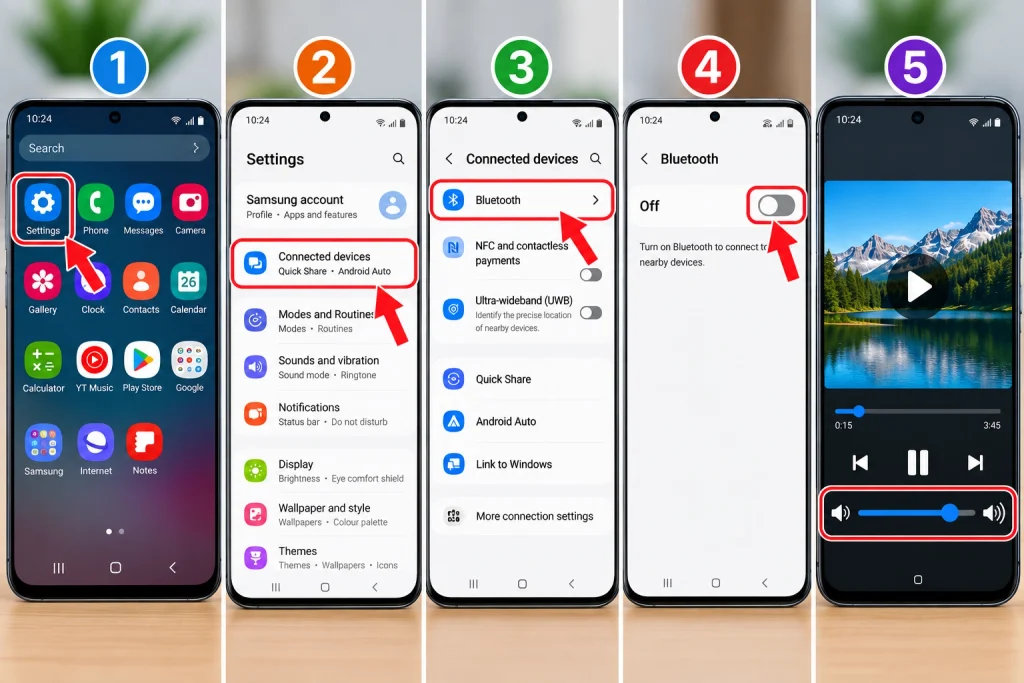
- Go to Settings.
- Select Connected devices or Connections.
- Select Bluetooth.
- Disable Bluetooth.
If you can hear sound from the phone speaker afterward, then the issue was caused by the Bluetooth device connected to your phone.
Step 3: Remove the Phone Cover
A thick or poorly fitted phone case can partly cover the speaker openings. The speaker output could become quiet in this case.
Take off the cover and test the speaker again.
Remember to check the speaker holes on the bottom edge, at the front of the earpiece, or at the back of the mobile. It depends on the model where the issue is.
If the volume increases, verify if the phone cover is obstructing the speaker.
Step 4: Clean the Speaker Carefully
Dust and dirt may accumulate inside the speaker openings. This will eventually lead to loss of sound quality.
To begin with, turn off the phone. Gently clean the speaker area using a dry and soft brush.
A soft brush may be used to get rid of dust inside the opening of the speaker.
Avoid pushing anything in deep inside the opening and do not use sharp items like pins and needles as they may damage the speaker.
Also, do not pour any water or cleaning liquids directly onto the speaker.
Step 5: Restart Your Phone
Sometimes, errors in software can stop the speaker from working correctly. Restarting your device is a quick way to eliminate some temporary issues.
Restart an iPhone
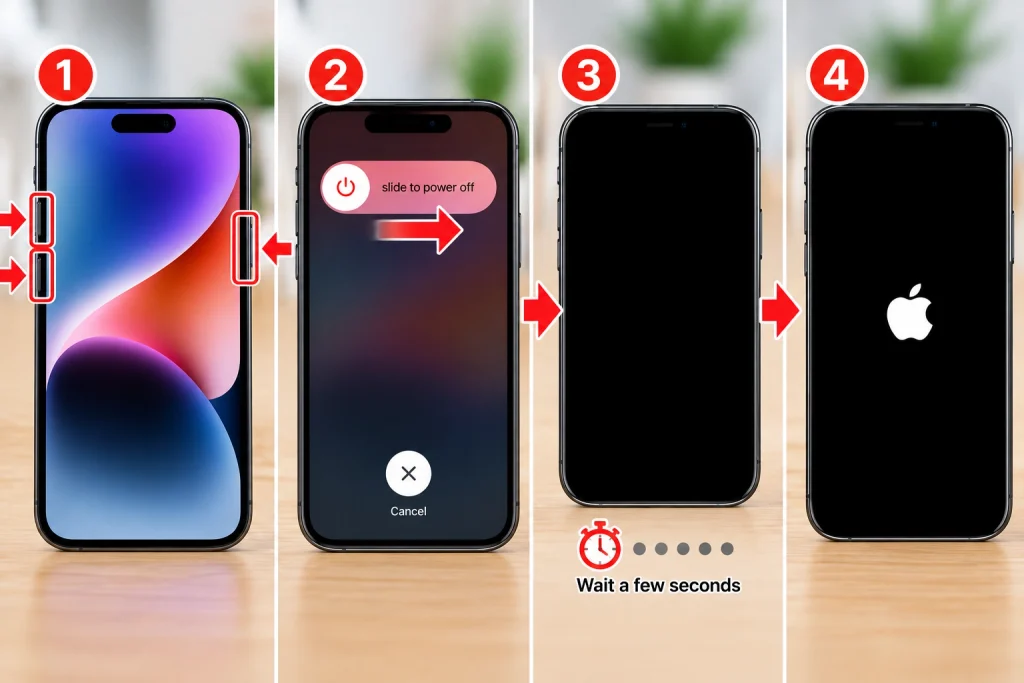
Hold down the right buttons until the slider appears, then slide it across to turn off the phone. Wait for a few seconds and turn it back on.
Depending on the model of the phone, the combination of buttons may be slightly different.
Restart an Android device
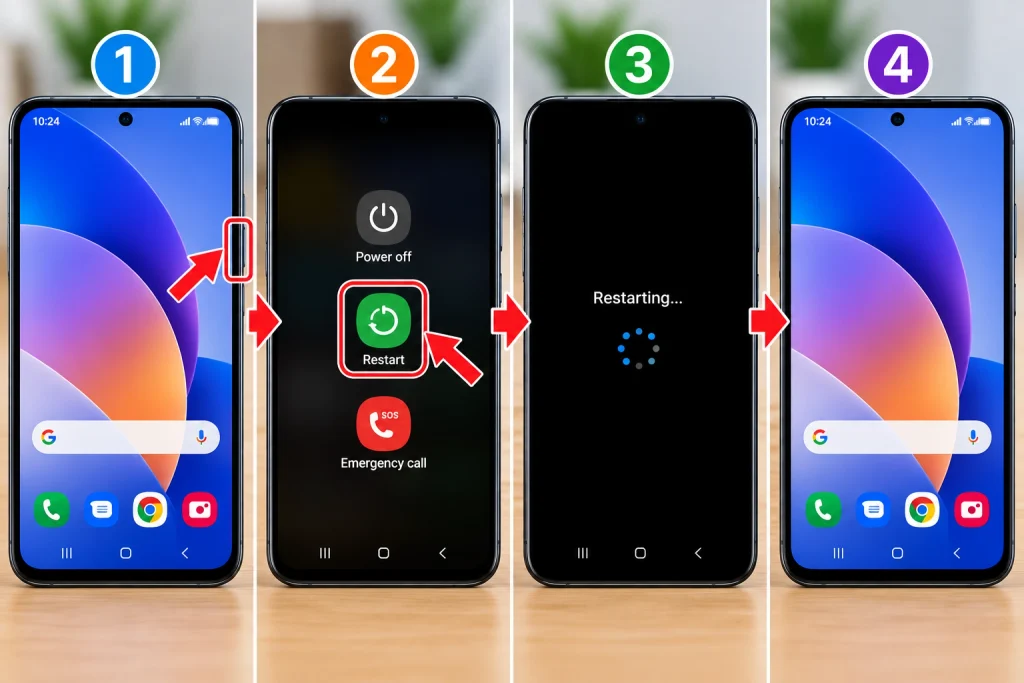
Press and hold down the power button and select Restart if prompted.
On some newer Android devices, press the power and volume buttons simultaneously to restart.
After doing these things, you can try playing audio again.
Step 6: Check for Water or Moisture
Water can affect the functions of speakers. If your phone has recently been exposed to rain, a spill, or any other kind of water, the speakers may react with some difficulty.
If the phone is wet, detach it from chargers and accessories. Wipe it off using a soft cloth and allow it to dry by itself in a safe place.
Don’t use a hairdryer or place the phone next to a strong heat source, thus risking damage to internal parts.
Moreover, avoid using any objects that may get stuck in the openings of the speakers and damage the unit.
If the problems persist even after the phone has dried, proceed with the software checks that will be presented further.
Step 7: Check Sound Settings on iPhone
If the iPhone speaker is not functioning properly, the next step is to inspect its audio setting.
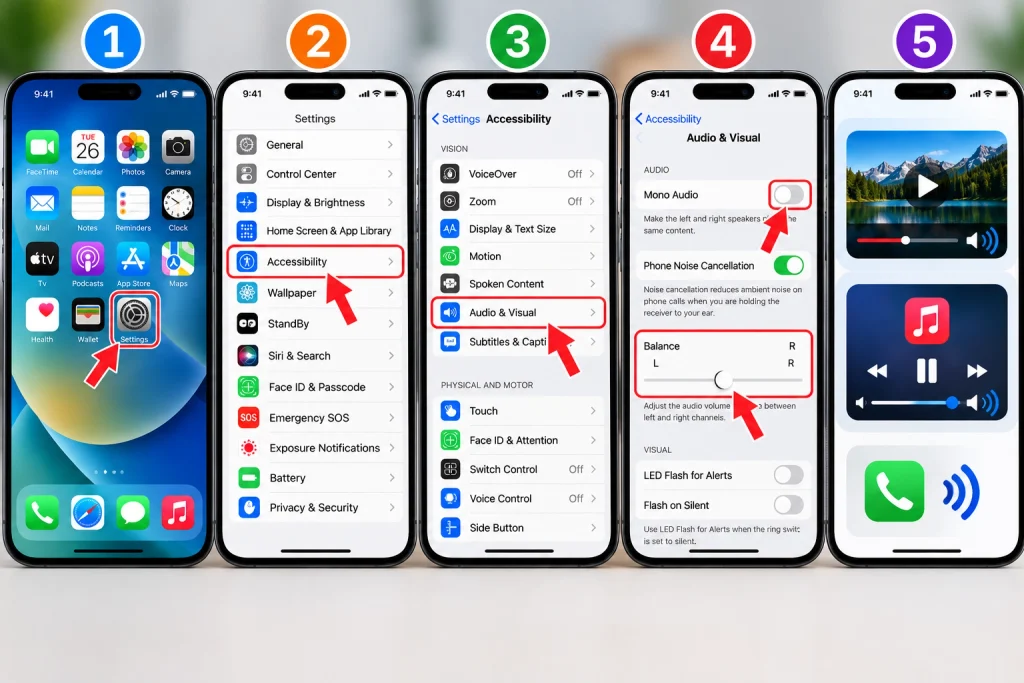
To do this:
Settings → Accessibility → Audio & Visual
Inspect the Balance setting. The slider should normally be in the middle unless you have a good reason to change it.
Also check whether mono audio is affecting your listening setup.
Now test different audio types such as videos, songs, and ringtones. You will be able to ascertain whether the problem is affecting all sounds or just one function.
Step 8: Check Sound Settings on Android
There are different sound settings menus among the various makes of Android phones. Still, you should usually check for sound settings under Settings → Sound and vibration.
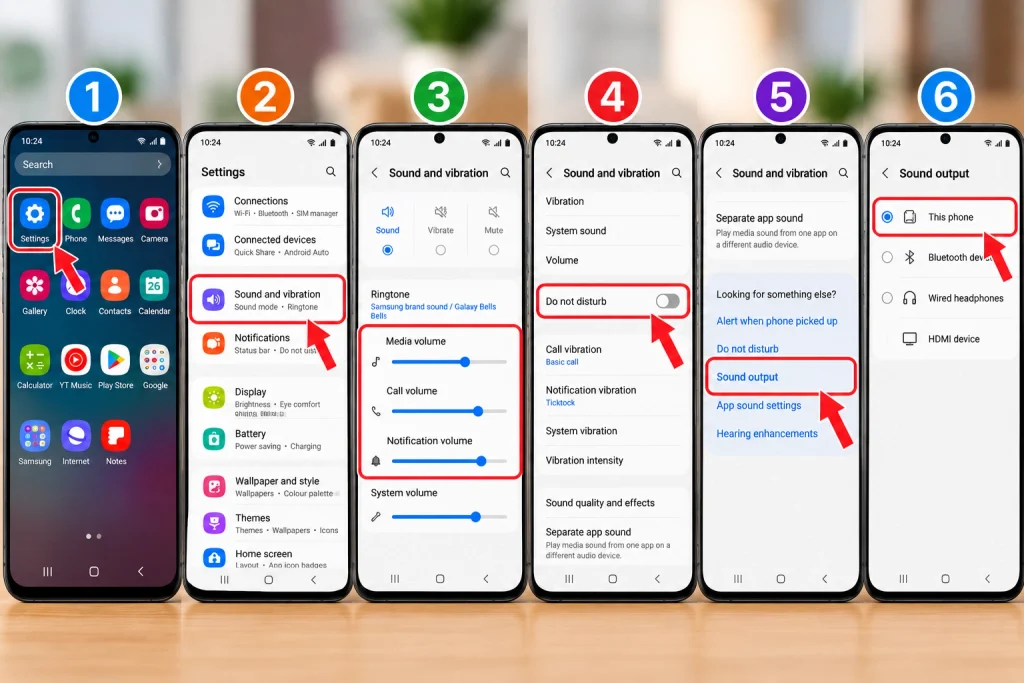
Make sure the following options are correct:
- Media volume
- Call volume
- Notification volume
- Do not disturb
- Sound output
- Connected audio devices
If your phone has a separate menu for audio output, make sure you choose the phone speaker.
Additionally, turn off your Do not disturb feature and then test the speaker.
Step 9: Update Your Phone
An outdated operating system can lead to audio problems in certain situations, so check to see whether there are any updates available.
For iPhone users:
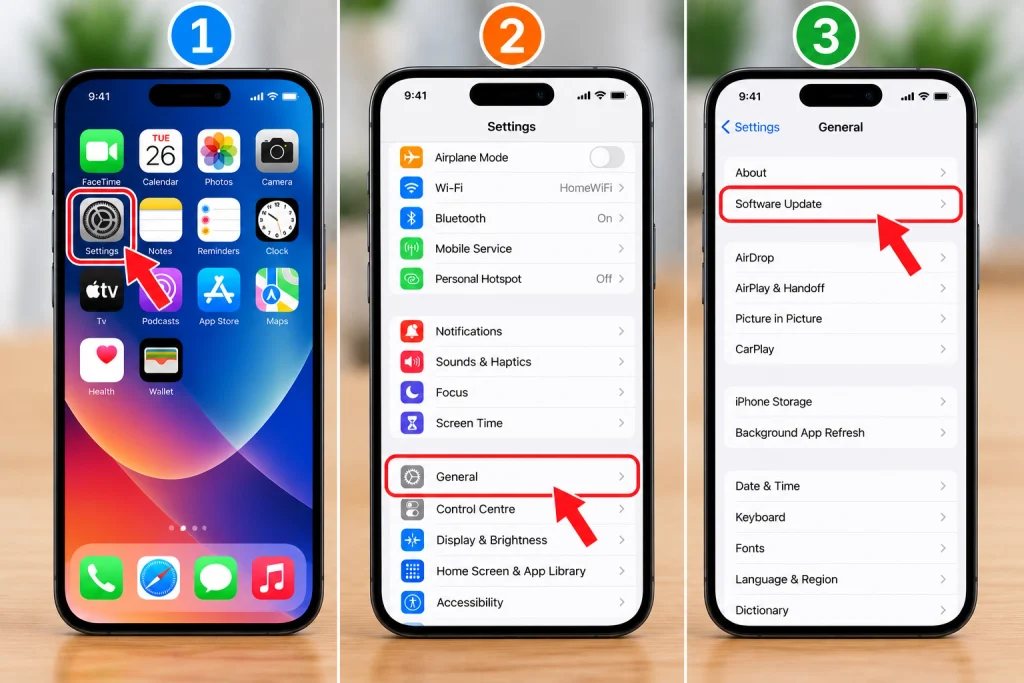
Open Settings → General → Software Update.
For Android users:
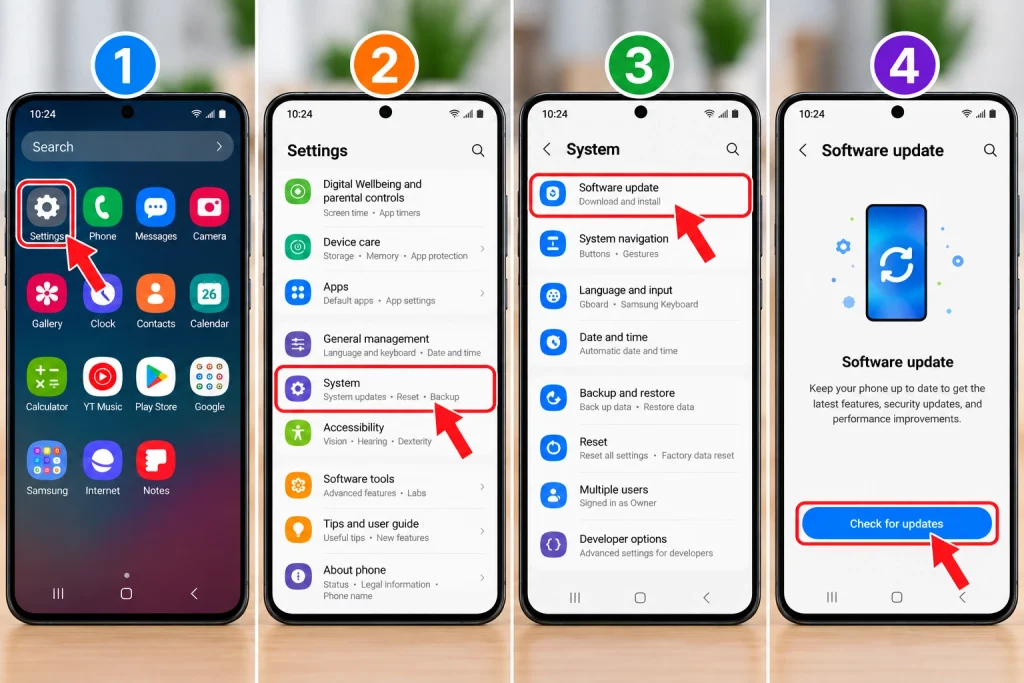
Go to Settings → System → Software update. Note that the label and location may differ across devices such as Samsung, Google Pixel, Xiaomi, OnePlus, etc.
If an update is available, carry out the update process per the instructions by the phone manufacturer, power off and on the device afterward, and perform a speaker function test.
Step 10: Test the Speaker With Different Audio
Do you suspect that the speaker is damaged? Before making that assumption, check with more than one sound source. What to try:
- Using YouTube.
- Using a stored music file.
- Using a ringtone.
- Making a phone call.
- Using speakerphone.
If the sound problem is occurring with only one app, it may be that the speaker itself is working properly. In this case, check the volume or settings of that app.
However, if the speaker has no sound or the sound is badly distorted with all types of audio used, there may be a larger software or hardware concern.
Step 11: Test with Headphones
Use either wired or wireless headphones to listen to audio.
If the headphones function correctly, yet neither the speaker nor the headphones work, it may signal a speaker problem on the phone or an interference issue with the speaker technology.
If both speakers and headphones do not produce any sound, check the phone’s operating system and software for possible issues again.
Step 12: Get Professional Help
If none of these solutions work for you, your speaker might be broken.
This can happen after:
- A hard drop
- Water exposure
- Long-term dust buildup
- A damaged charging port or internal part
- Hardware failure
If that is the case, contact your phone’s manufacturer, an approved repair center, or a certified repair technician.
You should not attempt to open up the phone on your own unless you have the necessary tools and experience. You could easily damage various internal components which are extremely small and fragile.
Final Thoughts
Normally, it’s possible to fix most phone speaker problems by simply following a few basic steps. To start with, increase the volume of the cell phone, disable Bluetooth feature, remove the cell phone cover from the phone, clean the speaker portion in a gentle fashion using a soft cloth, reset the phone, and check sound settings.
If you are using an Android phone or iPhone mobile and if there isn’t any listenable sound when you call someone, then make sure that you perform a software update that could resolve the problem in case of any temporary system malfunction. If the problem remains even after performing each of these simple steps and if the mobile phone is still silent, take help of a specialist who can mend the speaker of your mobile phone.
The most important thing is to carry out the steps one by one so that the cause of the problem can be located at ease.