
It takes only a couple of minutes to delete your Instagram account, but it is an irreversible decision. All your photos, videos, conversations, followers, and likes will be deleted permanently. This means that before proceeding to delete your account, you should understand one aspect: deleting and deactivating are not the same actions.
This is the difference between the two terms:
Deactivate: This means that your account is not visible. However, you will be able to reactive it at any time by signing in to your account.
Delete: In this case, your account along with all the content is deleted permanently. No restoration is possible.
If you only wish to take a break from your Instagram account, deactivation is the better option for you. Otherwise, you can proceed to the next parts of this guide.
Back Up Your Photos and Messages
Once your account is gone, your memories go with it. Therefore, download a copy of your data before you start.
Here is the path:
- Go to Accounts Center.
- Select your information and permissions.
- Click Download your information.
- Choose the appropriate account, select the format, then submit.
Meta will email you a download link, which typically comes within hours. However, if you have multiple years of posts, it may take longer. Be sure to save the downloaded file immediately because it will expire after a few days.
The 30 Day Grace Period
Your Instagram account won’t be deleted the instant you press the delete button—it’s only scheduled to be deleted after 30 days.
In the meantime:
- Your account, posts, and likes would be hidden from everyone
- You wouldn’t be searchable or able to be tagged
- But the data is still sitting on the servers belonging to Meta.
There’s one important caveat: If you login to your account during the grace period, the deletion request will be canceled and your account will be back to normal. Thus, in order to ensure that the account is deleted, it is essential that you remain logged out.
Instructions for Deleting Your Instagram Account Using the Mobile App (iPhone/Android)
This guide is based on the steps in the Instagram iPhone app. The procedure on the Android app is similar, although some of the terminology may vary a little.
- Launch the Instagram app and sign in to the account that you wish to delete.
- Go to your profile page by tapping on your profile/image. It is found in the lower section of the right-hand side.
- Press the three dashes on the top right corner.
- Tap on settings and privacy then select Accounts Center from near the top.
- From the section of Account settings select Personal details.
- Select Account ownership and control.
- Click on Account deactivation or deletion.
- Select your Instagram account from the displayed profile. If several accounts are linked, you will find all in the section.
- Press delete account then click on continue.
- Choose a reason of your choice from the list of options given, since this step is compulsory.
- Input your password when prompted before proceeding further.
- Finally, confirm account deletion by pressing delete account.
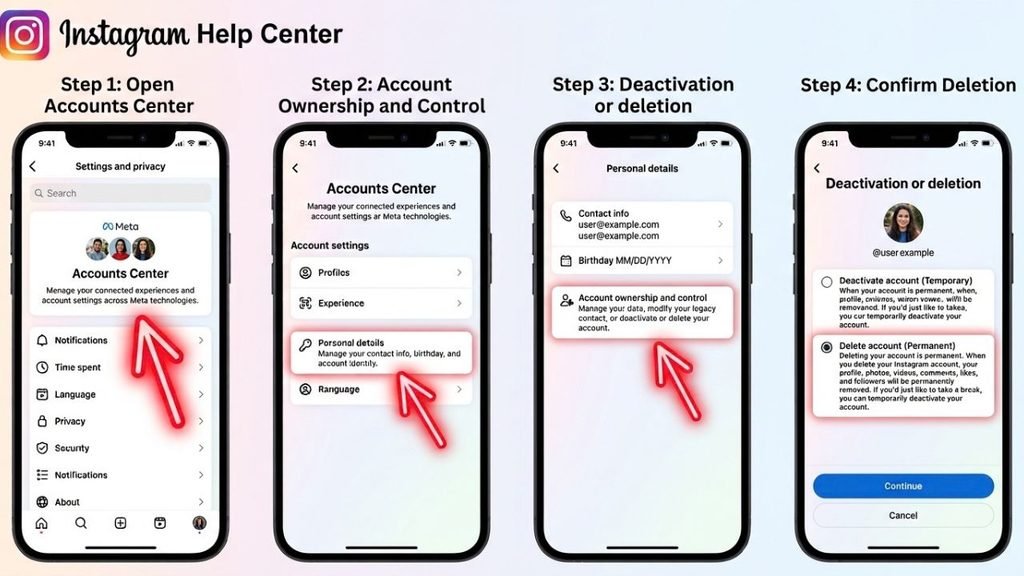
That’s it. Your 30-day countdown starts right away.
How to Delete Your Instagram Account on a Desktop
If you want to use the browser instead of the phone to delete an account, you can do so and the steps are almost identical to mobile.
- Go to instagram.com and log in.
- Select More on the left side of the screen and then select Settings.
- Open Accounts Center.
- Select Personal details.
- Select Account ownership and control.
- Select either Deactivation or deletion.
- Choose the account to be deleted, select Delete account, and press Continue.
- Choose a reason, enter your password, and confirm.
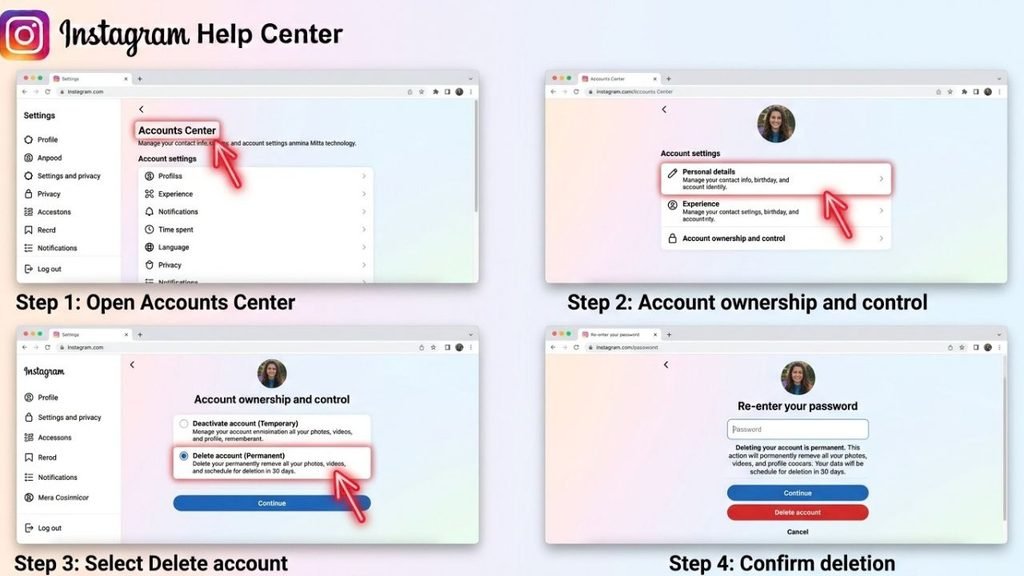
Since both procedures go to Meta’s Accounts Center site, they will end at the same page.
What If You Don’t Remember Your Password?
Deleting an account cannot be done without having their password because Instagram requires this information in the last stage regardless of the method used.
So the first step is resetting it:
- Go to the screen that says Forgotten password?
- Input your username or email as a user ID or access code.
- Start up the reset link sent by Instagram.
- Once you have changed your password, log in with your new password.
Will This Delete My Facebook Account Too?
Definitely not. The deletion of your Instagram account does not cause any effect in your Facebook profile even when they are linked through the accounts centre.
Nevertheless, unlinking them first will help avoid confusions later. You can perform the un-linking procedure from Accounts Centre > Accounts. Your Facebook posts, friends, and messages even stay intact during account deletion.
Can Someone Else Claim My Username?
There is a possibility. When you delete your profile, your username becomes free for someone else to use.
In addition, Instagram does not allow for the utilization of an old username to create a new account in some instances. Therefore, if your username is of great importance to you, then it is advisable that you think twice before making the final decision about deletion as by deactivating your account, you confirm that your username is safe.
How to Cancel the Deletion
If you wish to change your mind, you can just log back in to your account using your username and password. In 30 days, Instagram will automatically cancel the deletion request and you will recover all your posts, followers, and messages.
If over 30 days pass after the initial deletion request, there is no possibility of recovering your account.
A quick summary
Use delete when you want a fresh start. Use deactivating when you need some space. Download your data before you proceed, remember your password, and keep your account logged out for thirty days if you want a permanent removal.