
Saving a YouTube video can mean two different things: either saving the video within the YouTube application for offline use, or saving the video to your PC or mobile device as an actual file. The YouTube feature is the better and easier option for saving videos, but some prefer to use third-party video-saving websites.
Here we explored the two methods. The first uses YouTube’s own save and download options. The second explains how third-party video-saving websites generally work and what you should check before using them.
Method 1: Use YouTube’s Official Save or Download Feature
YouTube provides the ability to download videos, but this will depend on your location, device, type of account, and the video itself.
Save a video to YouTube
If you just want to find a video later, you do not need to download it.
- Open the YouTube app/website.
- Find the video you want to save, click save.
- Select an existing playlist or create a new one.
- Go to your library area later to find the saved video.
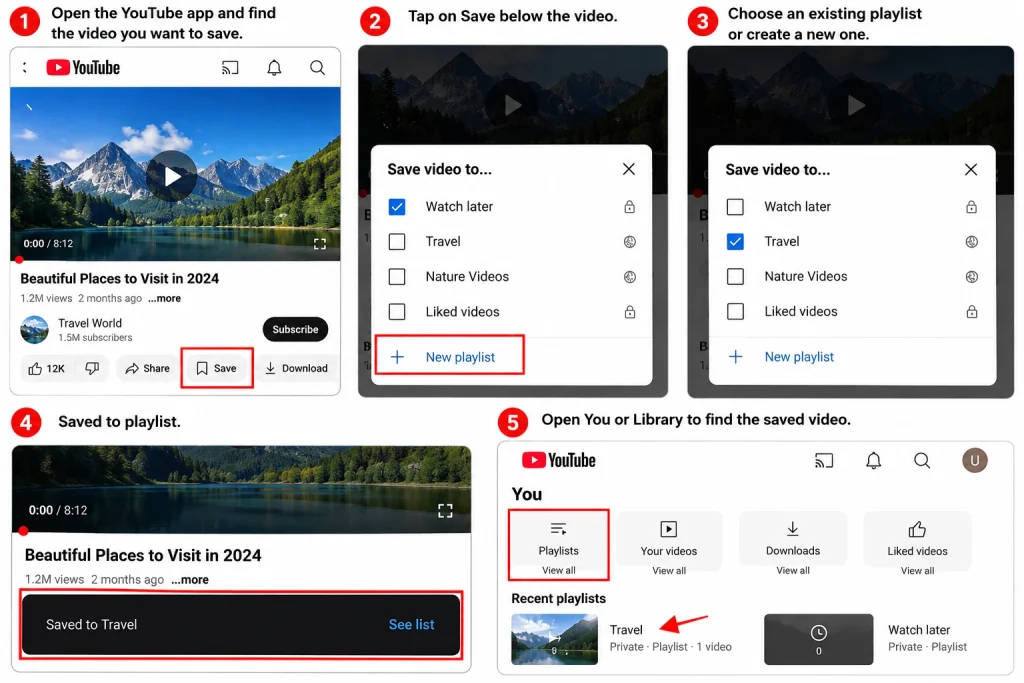
This option does not create a video file on your mobile phone or computer. It saves the video to your YouTube account/playlist.
Download a YouTube Video
If you subscribe to YouTube Premium, you can download YouTube videos to watch them offline.
- Log in to your YouTube Premium account on the app or website.
- Search for the video that you would like to download.
- Tap on the Download icon under the video.
- If the video has more than one resolution available, select your preferred option.
- Wait until your video is downloaded successfully.
- You can access the Downloads section on the app to watch the downloaded video offline.
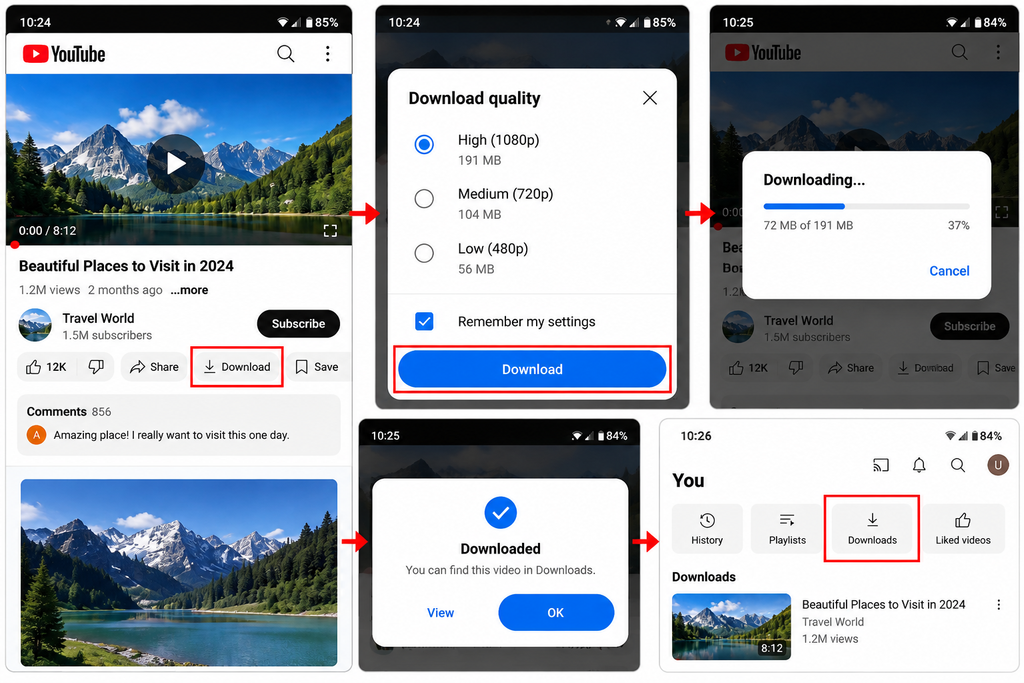
Once downloaded, the video is stored for offline watching in YouTube. It does not get saved as a regular MP4 file that you can access from your phone’s gallery or from various folders on your computer.
Remember that not all videos are eligible for offline downloads. The eligibility of a video for offline download may depend on a number of factors including restrictions by YouTube, the particular video, location, and device.
Method 2: Use a Third-Party Website on PC or Mobile
Using a third-party website to allow access to the YouTube video that you want to download is another popular method.
Ensure that you only use third-party sites to download videos, when you are allowed to do so by the video license or YouTube’s terms of service. There are many copyrighted videos on YouTube that one cannot simply download without permission to do so.
If you do have the right to download the YouTube video, the process should be quite simple:
Save a video on a PC
- Open YouTube on your browser
- Go to the YouTube video that you want to download
- Copy and paste the video link from the address bar into a trusted site to allow you to download video from YouTube
- Select the relevant video resolution/ format
- Download the video
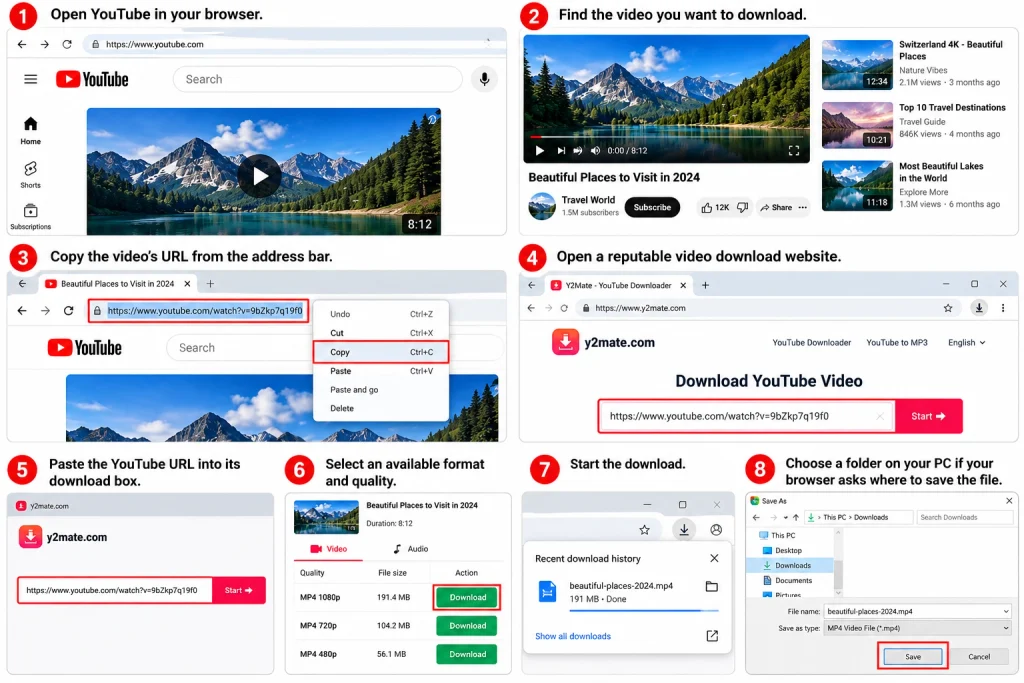
Once your browser requests for the downloaded file to be saved, specify a local drive folder.
Save a video on an Android phone
To save a video from YouTube to your Android phone, the process is almost the same as it would be if you were using a mobile browser.
- Open YouTube and find the permitted video.
- Tap Share and copy its link.
- Open a trusted third-party download website in your browser.
- Paste the video link into the provided box.
- Select a suitable format MP3 or video and quality, or choose MP3 if you only need the audio.
- Start the download.
- Check your phone’s Downloads folder when it finishes.
If the download site requests that you install any type of application or browser plug-in, it is advisable that you stop and refrain from doing so. You should not need to install unnecessary software in order to download a video.
Save a video on an iPhone
Now the browser-based method can also be used by iPhone users if the video can legally be downloaded.
- Copy the YouTube video URL.
- Open Safari.
- Visit the chosen third-party download service.
- Paste the URL.
- Select the available download option.
- Follow Safari’s download prompt.
- Find the file in the Files app.
Depending on file type and your iPhone settings, the video may be located in the Files app instead of automatically appearing in the Photos app.
Which Method Should You Use?
When it comes to using an official YouTube method, it is often one of the simplest options if you are looking to just download videos for offline viewing. Moreover, using the official YouTube option does not raise issues of security and/or privacy, which may be associated with some random download websites.
A third-party website is applicable if you know that you have permission to download a video as a file. It may happen in the event that you are downloading a video that you created or one for which there is a proper license for downloading.
| Method | Best for | Creates a video file? |
| YouTube Save | Finding videos later | No |
| YouTube Download | Official offline viewing | Usually no |
| Third-party website | Permitted video files | Yes, depending on the service |
Final Thoughts
When using methods that work best, it is simple to save a YouTube video. If you simply wish to have quick access to the video later, you can make use of the saving option available to you on YouTube. If the video allows downloading of it offline then you can simple proceed by using the download option available to you.
If you wish to have an actual video file, a third party website may give you the ability to do that, as long as you have the legal right to download that content. However, in this instance, you must be careful and avoid any sites that appear suspect and never risk infringing on the copyright or licensing of the video.